Only admins can change organization settings.
Logo and organization details
1
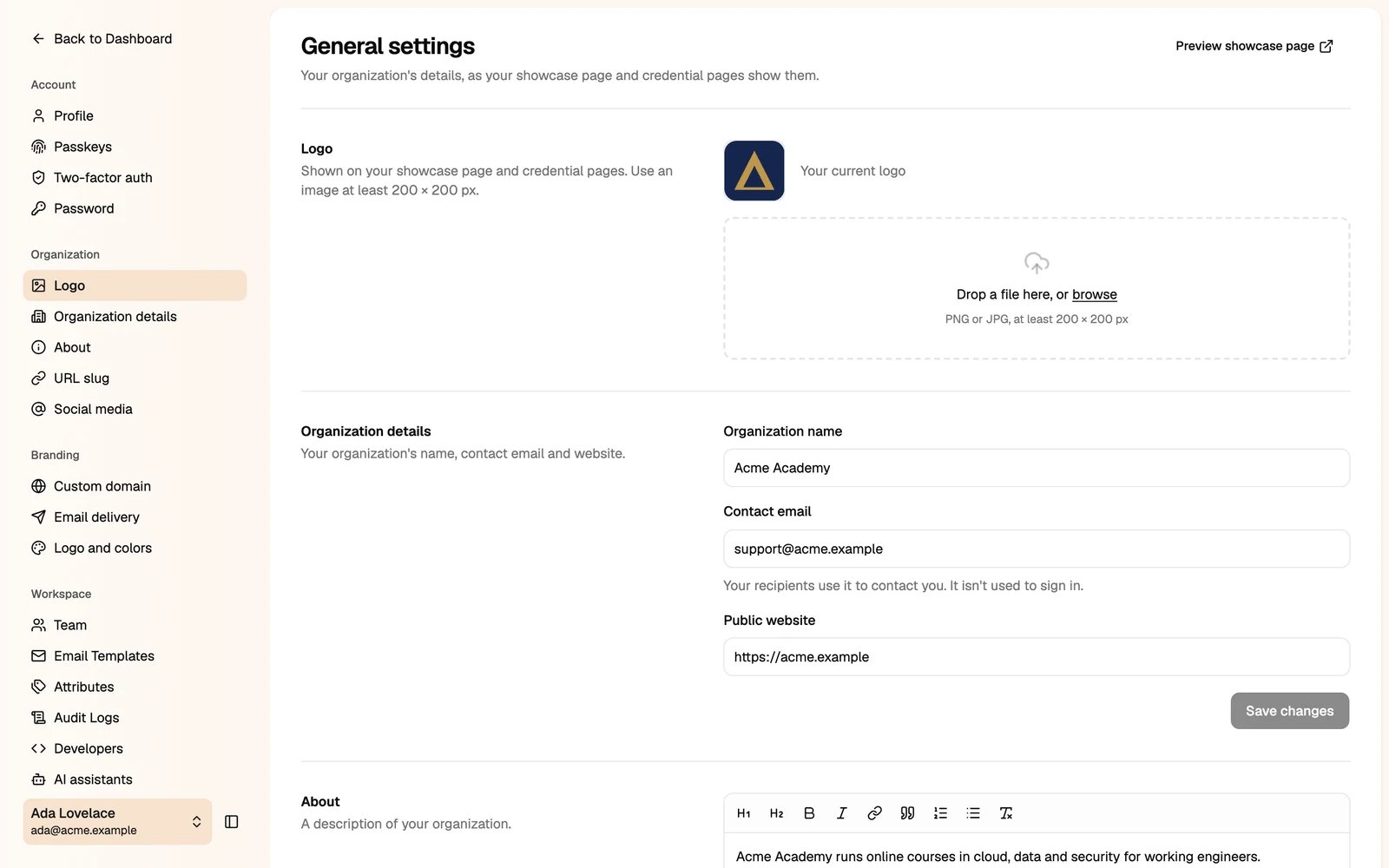
Upload your logo
Under Logo, drop a PNG or JPG file, or click browse. Use an image of at least 200 × 200 px.
2
Check your organization details
- Organization name: shown on credentials and public pages.
- Contact email: recipients use it to contact you. It is not used to sign in.
- Public website: your organization’s website.
About
Write a short description of your organization. It appears on your showcase page.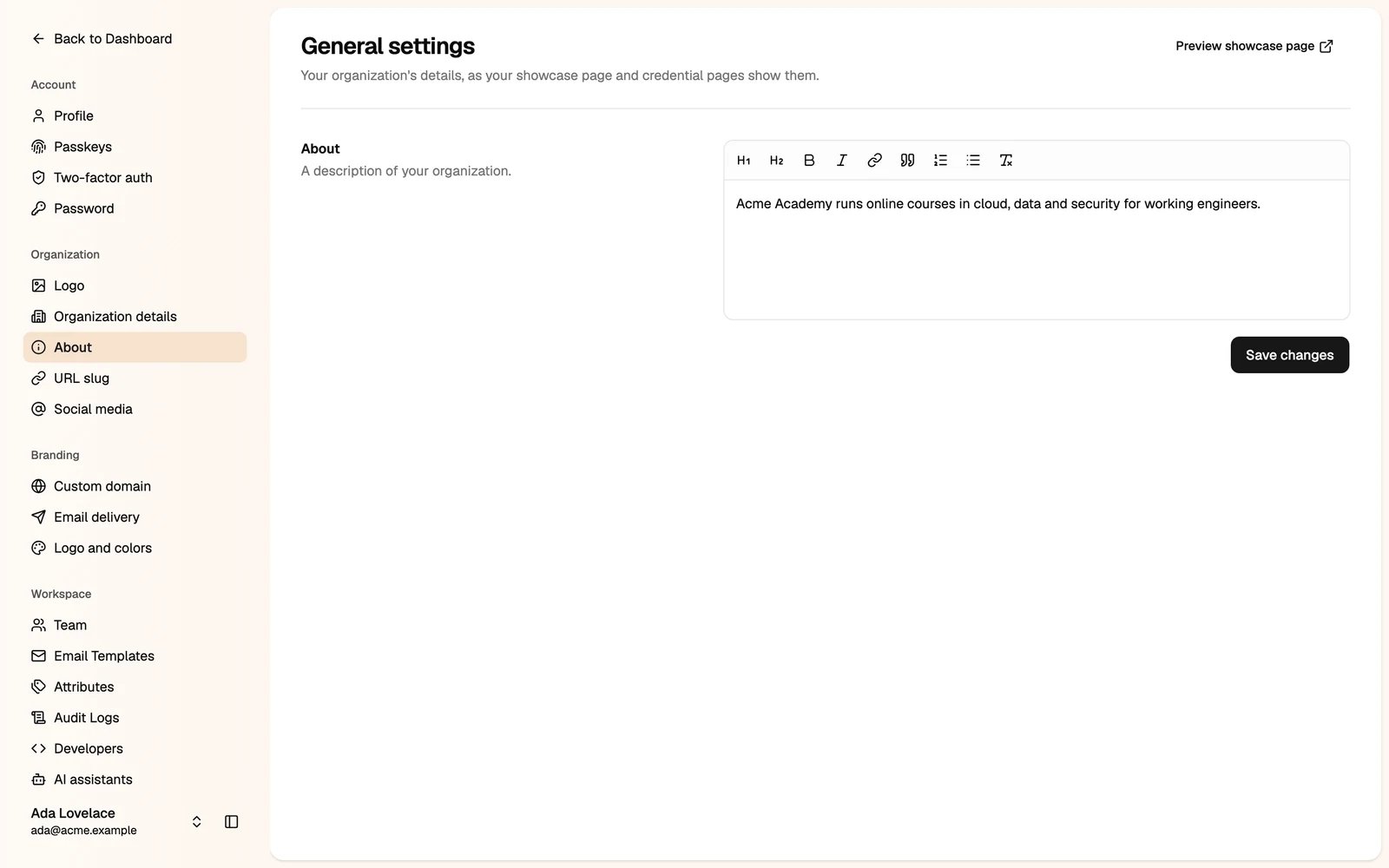
URL slug
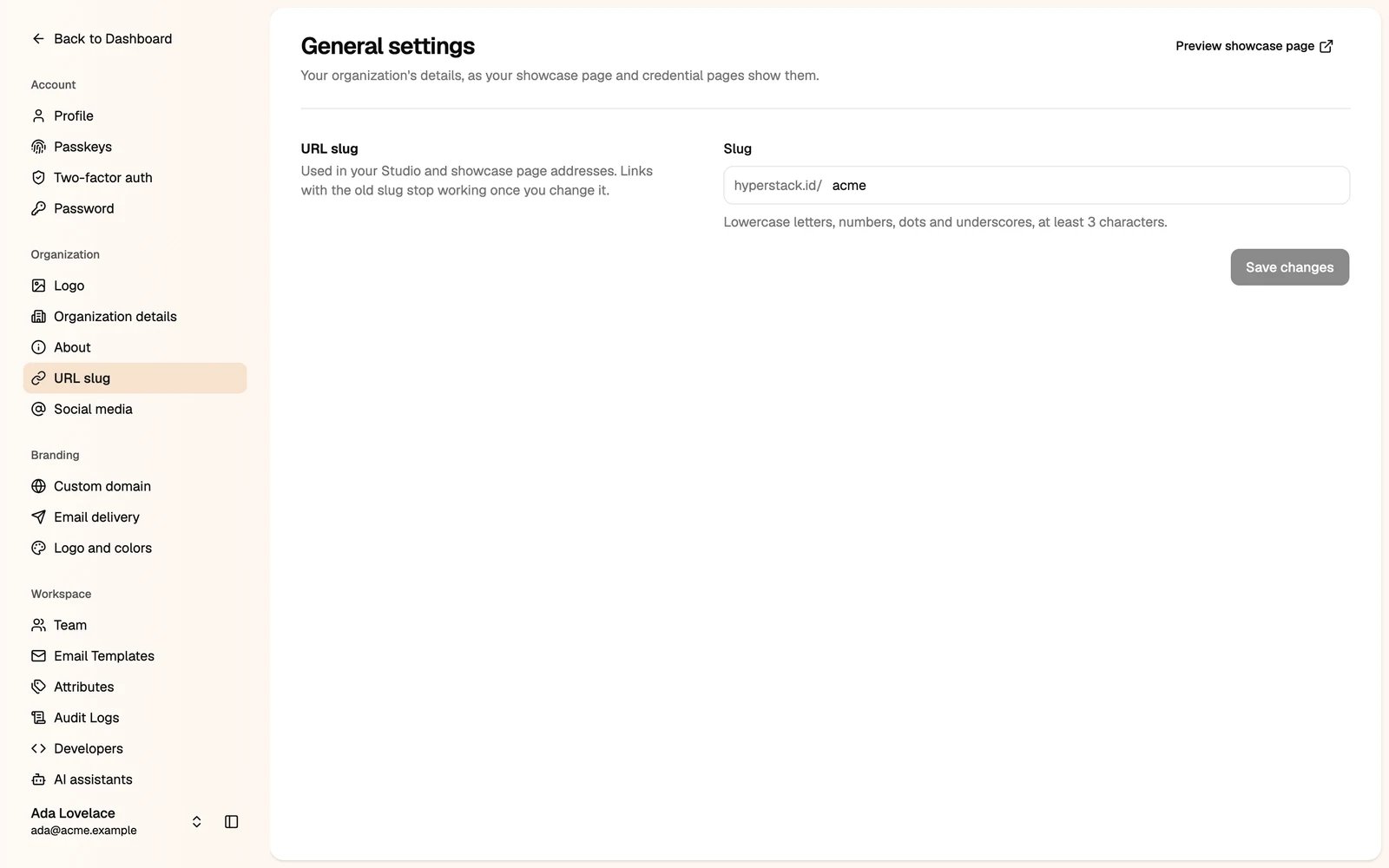
The slug is part of your Studio address and your showcase page address, for examplehyperstack.id/acme. Use lowercase letters, numbers, dots and underscores, with at least 3 characters.
Social media
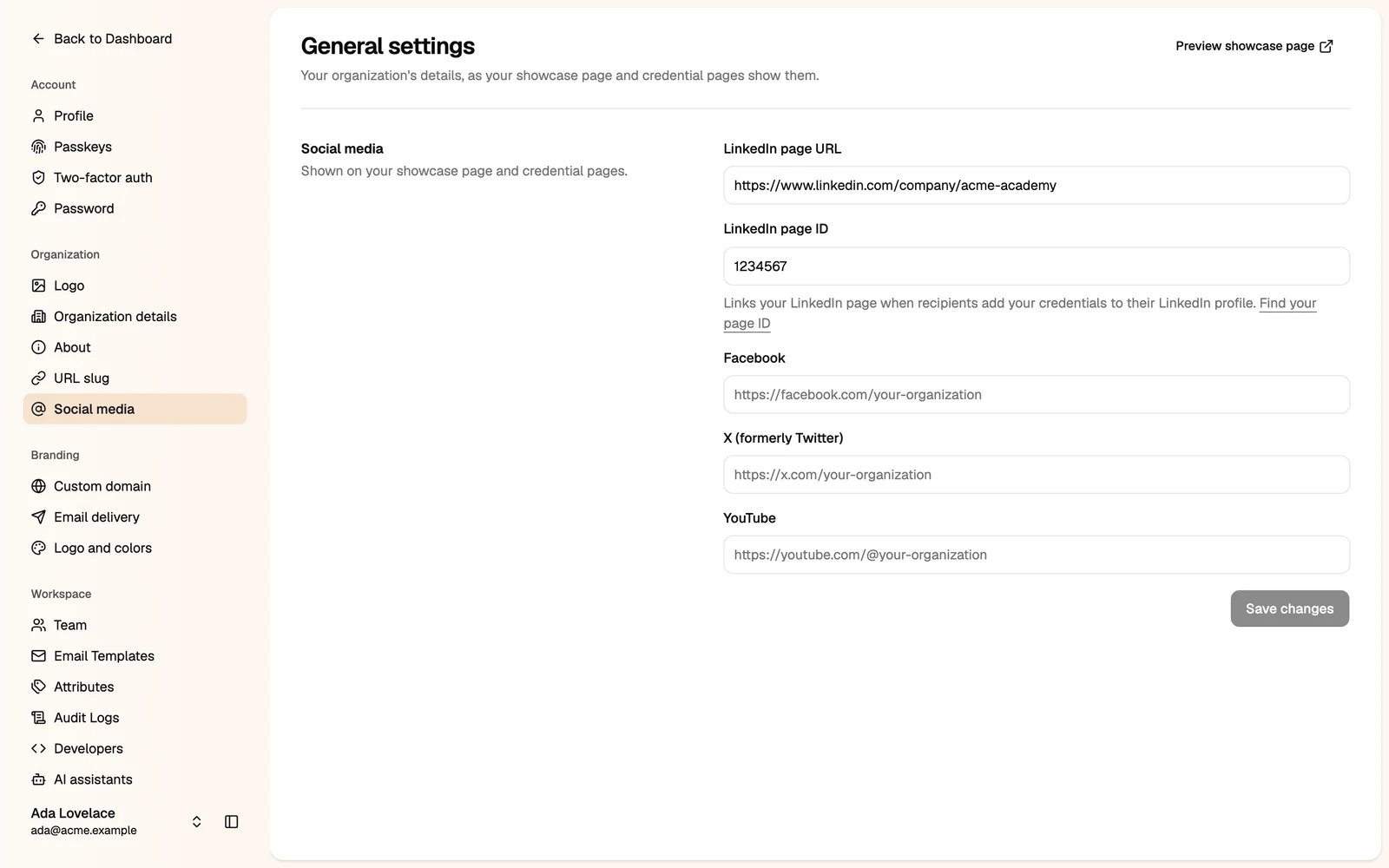
Add the links to your LinkedIn page, Facebook, X and YouTube. They appear on your showcase page and credential pages.