microsoft forms
3655 Topics
Take user to a specific URL after they click "Submit" on a Microsoft Form
Hello, I would like to know if it is possible to do the following: 1. User completes a Microsoft Form. 2. User clicks the "Submit" button. 3. Microsoft Forms redirects the user to a new URL: thisisatest.com/thank-you I've been looking in different tech forums and reading articles, and I haven't been able to find any good info on this. I couldn't find an intuitive way to set this up from the settings on Microsoft Forms either. I don't see this listed as an option. Any suggestions will be appreciated it. Thanks.13KViews0likes3CommentsIgnite Blog: Taking Forms to the Next Level with Teams and Power Automate
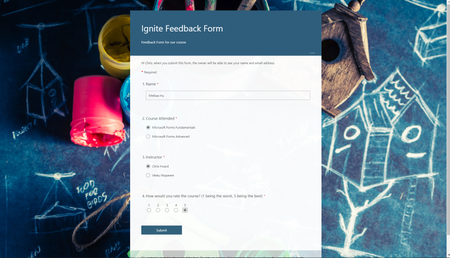
I hope you are all having a great time at Microsoft Ignite! My name is Chris Hoard, Partner Education Lead at Vuzion here in the UK. I am a Microsoft Certified Trainer Regional Lead (MCT RL) and Office Apps and Services MVP.13KViews5likes3Comments
Shipped! Surveys Agent now live for customers in Microsoft 365 Copilot (Frontier program)
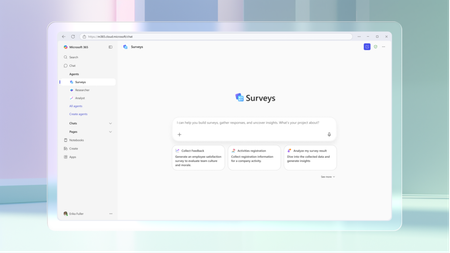
Today, we’re excited to introduce Surveys Agent in Microsoft 365 Copilot, a brand-new pre-built agent developed by Microsoft, now available through the Frontier program. Think of Surveys Agent as your personal survey expert—ready to help you from start to finish. Whether you're gathering feedback from a training session, measuring employee satisfaction, or running customer research, Surveys Agent has your back. It helps you: Draft surveys tailored to your goals so you have a shareable survey right away Refine questions to make your survey easy to use, and drive meaningful results Launch your survey with a clear plan and timeline Send invitations and reminders to boost response rates Track progress and analyze results—all through a simple chat conversation Gone are the days of piecing together multiple tools to create forms, chase replies, and interpret feedback. Surveys Agent streamlines the entire process into a simple conversational experience, making survey creation as intuitive as having a chat. While drafting your survey, you can view refinements instantly alongside the conversation. When you’re ready to launch, Surveys Agent recommends the optimal timeline and distribution channels, even preparing and sending invitations to your selected audience – all from within the same conversation. From there, the agent keeps you informed by automatically tracking response rates, sending timely reminders, or notifying when it’s ready to dive into the results. You can come back to the conversation at any point to check in on the survey’s status or analyze the responses – ask questions in chat or export your findings directly to an Excel workbook. It’s like having an intelligent assistant that helps you design better questions, launch with a plan, send reminders, and analyze results without all the heavy lifting. Surveys Agent is now available to commercial users with a Microsoft 365 Copilot license as part of the Frontier program that gives customers early access to new Copilot innovations while they’re still in development. You can find it in the Agent Store under Built by Microsoft—or jump straight in here: Surveys Agent (Frontier) - https://aka.ms/GetSurveysAgent. To learn more about Surveys Agent, go here - https://aka.ms/SurveysAgentStart. We can’t wait to see how you use it, and we’re eager to learn from your feedback as we improve the experience. Just give Surveys Agent responses a thumbs up or a thumbs down, and write your feedback – it really helps us continue to build and refine the product!3.9KViews1like1Comment
Limited to 200 submissions
The helpdesk has confirmed that I have an m365 family subscription. This would allow me to receive 1000 responses in Forms. However, when I log in to Forms with my details, only 200 answers are accepted. In addition, I get a "buy button" on the screen. In other words, Forms "thinks" that I have a free plan. Who can solve this for me?55Views0likes1Comment200 answers instead of 1000
The helpdesk has confirmed that I have an m365 family subscription. This would allow me to receive 1000 responses in Forms. However, when I log in to Forms with my details, only 200 answers are accepted. In addition, I get a "buy button" on the screen. In other words, Forms "thinks" that I have a free plan. Who can solve this for me?12Views0likes0CommentsCreate an Internal Support Ticket Hub with Microsoft Lists, Forms & Power Automate
Setting Up the Support Ticket Portal First, we will set up the support ticket portal. This is where ticket requests will populate, be triaged, assigned and managed. It's a central location where the support team members can keep track of their tasks as well as keep the client informed through automated notifications upon status changes. Let's get started! 1. Create the Microsoft List: Navigate to Microsoft Lists from the Microsoft365.com App launcher in the upper left. Select the “+ New list” and choose the “Issue Tracker" template. Fill out the list information (name, description*, color*, icon*, and associate it with a team or save to your lists) and select create to make your form (*optional). In this case, associating the list with a team is required as it is needed for notification purposes later on in the tutorial. Review the list items from the template and customize the list to what your organization needs. Include columns that capture essential details such as issue description, priority level, assigned to, and status. Ensure the list is set up to store all necessary information for managing support tickets. There will be items you need captured from the person submitting the form as well as items to triage, assign, and track the status of the case. 2. Creating the Support Ticket Form In the list menu, select the "Forms" tab to create a new form. Customize the form by removing or unchecking questions that are designed for the support team, leaving only the questions needed from the person submitting the ticket. For example, you’d remove the Priority, Status and Assigned To fields from the form because those items are not determined by the submitter, but by the internal staff triaging the case. Ensure the form captures essential details such as the issue description, associated files, and contact information. 3. Enabling Notifications and Assigning Tickets In the form settings, select the toggle next to "Notify me" so that whenever a new item (support ticket) is submitted, you are immediately notified. This ensures that you don't miss an urgent request. Preview your form Check for changes or adjustments you’d like to make. If everything is good, congratulations! You’ve made your support ticket form! 4. The Workflow Process: Now that your form and list are created you can test out your new form and ticket portal. Grab the link to your new form by selecting the forms button again in the menu. Select the link sign to copy the link. Let's test things out. Fill out the form with information as if you are an employee submitting a ticket about an issue. Refresh and check your Microsoft List to make sure the form responses were automatically added. Triage the case. In the Microsoft List, double click on the form submission list item. Here, the support admin will triage the case by assigning it to a member of the support team, updating the status of the ticket to "In Progress" and assigning it a priority status. When a ticket is assigned, the assigned staff member receives a notification, ensuring they are aware of their new task. If they need to get in contact with the employee that submitted the case, they are able to come to the list item, and check for contact/email details in the email column. Team members can update the status of the ticket to "In Progress" when they start working on it and then to "Completed" once the issue is resolved. These status updates help track the progress of each ticket and ensure timely resolution. Congratulations! You have an internal support ticket portal and form. To further enhance the transparency and efficiency of your internal support ticket system, you can implement additional notifications to keep the requester informed about the status of their ticket. By setting up automated notifications in Power Automate for when a ticket is marked as "In Progress" and "Completed," you ensure that the requester is always aware of the current status of their issue. This not only improves communication but also boosts confidence in the support process, as employees feel assured that their concerns are being actively addressed and resolved. 5. Automating Notifications with Power Automate Create a Flow: From the Microsoft365.com app launcher, open Power Automate. Click "+ Create" and select "Automated Cloud Flow". Choose a flow name and set the trigger to "When an item or file is modified". Configure the Flow: On the canvas, select the trigger to enter the required data. The site address your Microsoft List is attached to and the list or library name. Next, we must add a trigger condition in order for the flow to only trigger when the status column has been changed. In the settings tab add the following trigger condition NOt(equals(triggerOutputs()?['body/Status'], triggerOutputs()?['body/PreviousStatus'])) Return to the canvas to create a new action. Select the + sign under your trigger. In the search menu, search for the condition action. For the value of the condition, we want to choose the Status Value from the dynamic field (the lightning bolt). We want to make sure the condition states “Status Value is equal to In progress”. (Capitalization matters here so make sure the capitalization of “In progress” matches the way it is spelled on your Microsoft List”. In the "True" column of your condition we will add a new action. Select “Send an email (V2) Inside of your action select, “Switch to Advanced Mode” to be able to enter dynamic fields or fields directly associated with your form submission. In the "To" field, select the lightning bolt for a dynamic entry. And select the “Issue logged by Email”. This will add the email address of the form sender to the “To” field and who the notifications will be sent to. In the Subject field type and appropriate title such as “Support Ticket Status Update”. In the Body field type a message to the requester. For example, "Hello, you are receiving this message to notify you that your support ticket for" (dynamically insert the name of the issue) “has been changed to “In Progress”. At this point, the flow now sends notifications for when the status column has been modified to “In Progress. Now, let's do the same and send a notification for when the status has been changed to “Completed”. In the False column, we are going to add another condition. The values for the condition will be the same except where it once said, “In Progress” it will say “Completed”. You want the statement to read “Status value is equal to Completed”. In the true column add the same action for sending an email and fill out the details accordingly. Save and test your flow. Test and Deploy: Test the flow to ensure it works as expected. Select Test and choose Manually. This specific flow is triggered when the status column has been modified to “In Progress” or “Completed”. Test both separately to make sure both works. You will see green check marks and receive a notification to the email you provided earlier when filling out the form with sample data. In this example, I tested the flow by updating the status to “In Progress” so in this case I have green check marks along the left side because that follows the first conditions. The green check marks will follow the right-side path if I choose to test the “Completed” status. Here is a copy of the email that was sent to the inbox. Once satisfied, deploy the flow to automate the notification process, enhancing communication and satisfaction. Conclusion By leveraging Microsoft Lists and Forms, you can create a robust internal support ticket system that streamlines the process of submitting, triaging, and resolving support requests. The integration with Power Automate further enhances this system by automating notifications, ensuring that all parties are kept informed throughout the process. This setup not only improves efficiency but also boosts employee satisfaction by providing a transparent and responsive support system.8.1KViews1like2Comments
Create a person field in MS form to transfer to SP list
I am creating a MS form where I was wondering if there is a way to create a person field to search for people in my organization? I know I can use the record name function, but I need to guarantee anonymity. If there is a way that would be great, otherwise I'll just ask the user to put in their Email, and load it into a person field in SP with power automate. tySolved128Views0likes2Comments