
NetForge




Professional Network Adapter Management Utility for Windows
A comprehensive, feature-rich GUI tool for managing network adapters, IP configurations, DNS settings, and network diagnostics with a modern dark-themed interface.
Features
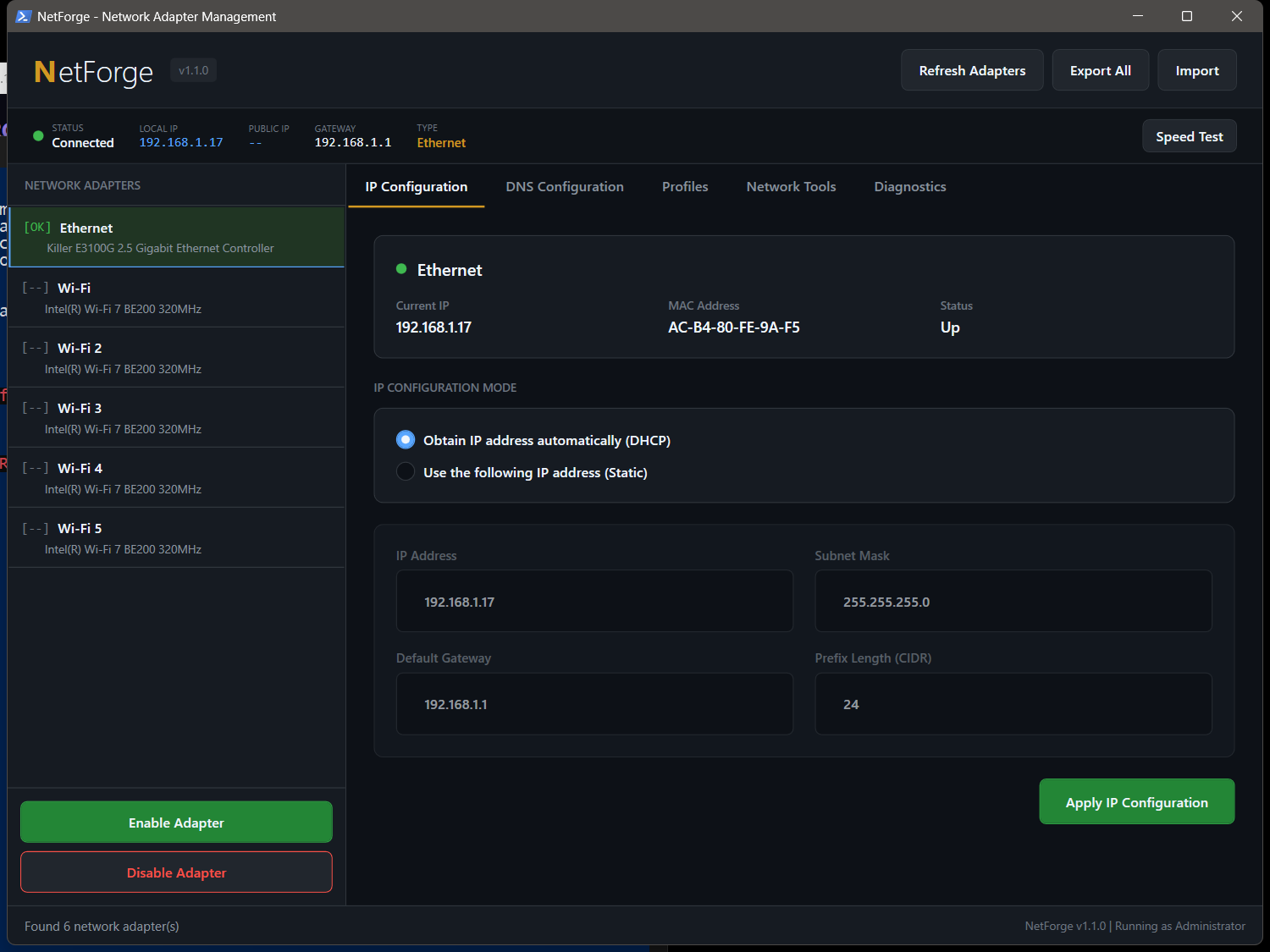
Connection Status Bar
- Real-time connected/disconnected indicator with colored dot
- Local IP, optional public IP lookup, gateway display
- Connection type detection (Ethernet/WiFi/VPN/Bluetooth PAN/Cellular)
- WiFi details: SSID, signal strength %, channel, band, auth type, link speed
- Auto-refresh every 30 seconds
Network Adapter Control
- View all physical network adapters with real-time status
- Enumerate Bluetooth PAN and cellular/mobile broadband adapters
- Advanced switch for Hyper-V, VMware, VirtualBox, VPN, TAP, and other virtual adapters
- MAC address override with random generation and revert to hardware default
- Interface metric editor for adapter priority control across IPv4 and IPv6, including IPv4-first / IPv6-first presets
- Last-state rollback snapshot before IP, DNS, or profile changes with a manual restore action
- Enable/disable adapters with one click
- Display detailed adapter information (MAC, speed, driver, media state)
- Auto-refresh capability
WiFi Network Manager
- Scan nearby WiFi networks with signal, channel, band, security, and BSSID counts
- View channel utilization by visible BSSID with strongest signal and BSSID list
- Connect to saved Windows WLAN profiles without opening Settings
- Create WLAN profiles for open or secured personal networks from the app
- Disconnect the active WiFi interface from the same tab
IP Configuration
- DHCP Mode: Obtain IP address automatically
- Static IP Mode: Configure custom IP settings
- IP Address
- Subnet Mask
- Default Gateway
- CIDR Prefix Length
- Optional static IPv6 address, prefix length, and gateway configuration
- One-click switching between DHCP and static configurations
DNS Management
- 40+ Pre-configured DNS Presets organized by category:
- Public: Google, Cloudflare, OpenDNS, Quad9, Verisign, and more
- Security: Quad9, Comodo, Neustar Threat Protection, CleanBrowsing Security
- Privacy: DNS.Watch, Mullvad, NextDNS, Control D, UncensoredDNS
- Family: Cloudflare Family, OpenDNS FamilyShield, CleanBrowsing Family, AdGuard Family
- Ad-Blocking: AdGuard DNS, Alternate DNS
- Custom DNS server configuration
- IPv6 DNS support for compatible presets
- Windows DoH and DoT encryption registration through
netsh dns add encryption - DNS providers load from a validated
dns-providers.jsoncatalog with a SHA256 sidecar and embedded defaults fallback - Preset DoH templates and DoT hosts for Google, Cloudflare, Quad9, and AdGuard
- Custom DoH template and DoT host entry for account-specific providers
- DNS health output with configured adapter DNS, config leak guard, DoH/DoT probes, UDP fallback state, DoQ proxy listener state, and resolver latency preview
- DoQ local proxy controls for compatible
dnsproxy.exebinaries - NextDNS config ID helper that fills account-specific DoH, DoT, and DoQ endpoints
- Search and filter DNS presets
Profile System
- Save complete network configurations as profiles
- Store IP settings, DNS configuration, environment actions, and metadata
- Schema-versioned profiles with validation, duplicate protection, atomic writes, and import summaries
- Configurable profile storage with custom folder/OneDrive migration, conflict detection, backup manifests, health checks, and local-storage revert
- Event-driven auto-apply profiles when the current SSID or gateway MAC matches saved rules, with timer fallback
- Scheduled profile switching by day and time through the same rollback-protected apply path
- Preview profile differences against the selected adapter before applying
- Optional profile actions for Windows Public/Private network category, system proxy, default printer, and mapped network drives
- Quick-apply profiles to any adapter
- System tray profile switching against the selected or first active adapter
- Import/export profiles as JSON or PNG QR codes, plus import Windows WLAN profile XML from
netsh wlan export profile - CLI profile apply for scripts with
-ApplyProfile, optional-AdapterName, and-Silent - Remote Desktop launch workflow that applies a profile first and reverts the previous network state when RDP exits
- Optional Discord webhook notification after successful profile applies for fleet visibility
- Perfect for switching between work, home, and other networks
Network Tools
- Quick Actions:
- Flush DNS Cache
- Release IP Address
- Renew IP Address
- Reset Winsock Catalog
- Reset TCP/IP Stack
- Full Network Reset
- Static Routes:
- Add or remove selected-adapter IPv4/IPv6 manual routes with destination prefix, next hop, and route metric
- View current manual routes for the selected adapter
- Hosts File Groups:
- Stage grouped hosts entries, toggle groups enabled/disabled, and write a NetForge-managed hosts section
- Preserve unmanaged hosts lines and create a timestamped backup before applying changes
- RDP Profile Launch:
- Apply a saved profile, launch
mstsc.exeto a host or.rdpfile, and monitor the RDP client - Revert the captured pre-RDP network state automatically when RDP exits, or manually from Network Tools
- Apply a saved profile, launch
- App Interface Guard:
- Restrict a selected executable to one allowed adapter by creating Windows Firewall/WFP outbound blocks on other adapters
- Persist guard policies and repair missing or stale NetForge-owned firewall rules after startup, network-change events, or manual refresh
- Detailed Adapter Information:
- Interface index and type
- Link speed and media state
- DHCP status and server
- Current DNS servers
- IPv6 addresses
- Driver information
- Continuous Route Diagnostics:
- MTR-style route tracing with per-hop sent/received/loss and latency history
- Port Scanning:
- Host or bounded IPv4 CIDR scan for common LAN service ports with open-service output
- Reachability Wizard:
- Diagnose "why can't I reach X?" targets across DNS, gateway, route/ping, TCP firewall/port, and MTU probes
- Accept hosts, IP addresses, URLs, or
host:porttargets and emit a concise root-cause summary
- Packet Capture:
- Start/stop Windows
pktmoncaptures, convert to Wireshark-readable.pcapng, and launch Wireshark when installed
- Start/stop Windows
- Cable / Transceiver Diagnostics:
- Selected-adapter report for hardware counters plus driver-exposed cable, SFP, DDM/DOM, and optical telemetry fields
Diagnostics Tab
- Ping Test: 10-ping burst with min/avg/max/loss statistics
- Continuous Ping: Toggle on/off, pings every 2 seconds with color-coded results (green <50ms, yellow 50-100ms, red >100ms)
- Latency Histogram: Timed endpoint probe with bucketed latency distribution, p50/p95, and loss percentage
- Endpoint Policy: Disable public-IP lookup, disable external speed-test downloads, and choose the HTTPS-only speed-test endpoint
- Profile Webhook: Opt-in Discord webhook for successful profile applies with redacted endpoint logging
- Diagnostics Export: Redacted support bundle mode with preview manifest and
redaction-report.json - Speed Test: Downloads from the selected HTTPS endpoint and logs the contacted endpoint
- DNS Lookup: Resolve any domain to IP addresses, shows responding DNS server
Modern Interface
- Professional dark theme with orange accents
- Persistent theme selector with GitHub Dark, Catppuccin Mocha, and Nord palettes
- Compact mode for laptop screens with persisted density scaling
- Tabbed interface for organized navigation
- UI strings load from resource files with English default and Spanish locale coverage
- Automation names and explicit focus order for primary workflows
- Real-time status updates
- System tray mode with categorized quick DNS preset and saved-profile switching
- Persistent operation/crash logs and a diagnostics zip export
- Responsive design
- Native Windows look and feel
Screenshots
Coming soon
Requirements
- Operating System: Windows 10/11
- PowerShell: Version 5.1 or higher
- Privileges: Administrator rights required
- .NET Framework: 4.5 or higher (included in Windows 10/11)
- Optional DoQ Proxy: AdGuard
dnsproxy.exeor compatible local DNS proxy for DNS-over-QUIC forwarding
Installation
Option 1: Direct Download
- Download
NetForge-vX.Y.Z.zipandNetForge-vX.Y.Z.zip.sha256from the Releases page - Verify the archive before extracting:
certutil -hashfile .\NetForge-vX.Y.Z.zip SHA256 Get-Content .\NetForge-vX.Y.Z.zip.sha256 - Extract the zip, then right-click
NetForge.ps1and select "Run with PowerShell" (will auto-elevate to admin)
Option 2: Clone Repository
git clone https://github.com/SysAdminDoc/NetForge.git
cd NetForge
.\NetForge.ps1
Option 3: One-Line Install
irm https://raw.githubusercontent.com/SysAdminDoc/NetForge/main/NetForge.ps1 -OutFile NetForge.ps1; .\NetForge.ps1Usage
Running the Application
# Simply execute the script (auto-elevates if needed)
.\NetForge.ps1
CLI Profile Apply
# Apply a saved profile to the first active adapter without success output
.\NetForge.ps1 -ApplyProfile Home -Silent

# Apply a saved profile to a specific adapter name or interface index
.\NetForge.ps1 -ApplyProfile Work -AdapterName "Wi-Fi"
Local Checks
.\tools\Test-NetForge.ps1Version and Release Package
.\tools\Set-NetForgeVersion.ps1 -Version 1.57.0
.\tools\New-NetForgeReleasePackage.ps1
Basic Workflow
- Select an Adapter: Click on a network adapter from the left panel
- Configure IP:
- Choose DHCP or Static IP mode
- Enter IP details if using static
- Click "Apply IP Configuration"
- Configure DNS:
- Select a preset from the DNS list, or
- Choose custom DNS and enter server addresses
- Click "Apply DNS Configuration"
- Click "Register DoH" or "Register DoT" to add Windows encrypted DNS metadata for compatible resolvers
- Click "Test Health" to validate encrypted DNS handshakes and DNS-message responses
- Configure the DoQ local proxy path/upstream and click "Start Proxy" when using DNS-over-QUIC
- Enter a NextDNS config ID and click "Apply NextDNS" to populate account-specific encrypted endpoints
- Save as Profile (optional):
- Go to Profiles tab
- Click "Create New Profile"
- Capture current SSID/gateway MAC when the profile should auto-apply
- Optionally schedule a profile for a recurring day/time switch
- Optionally set environment actions such as network category, proxy, default printer, or mapped drives
- Click "Preview Diff" to review changes against the selected adapter
- Fill in details and save
- Use the header Import button to import NetForge JSON exports or Windows WLAN profile XML exports
- Use
.\NetForge.ps1 -ApplyProfile Home -Silentfrom scripts to apply a saved profile without launching the window
- Launch RDP with a profile (optional):
- Go to Network Tools
- Enter a host or
.rdpfile and saved profile name - Click "Launch RDP with Profile"
- NetForge reverts the captured pre-RDP network state when the RDP client exits
- Restrict an app to one interface (optional):
- Go to Network Tools
- Browse to an
.exe, choose the allowed adapter, and click "Apply Guard" - NetForge blocks that app on other current adapters using Windows Firewall interface filters
- Diagnose reachability:
- Go to Network Tools
- Enter a host, URL, IP address, or
host:port - Click "Why Can't I Reach X?" to check DNS, gateway, route, TCP/firewall, and MTU signals
- Manage WiFi:
- Go to the WiFi tab
- Click "Scan Networks"
- Select a network and click "Connect" or "Disconnect"
- Control external diagnostics:
- Go to Diagnostics
- Disable public-IP lookup or external speed-test downloads when working offline or privately
- Select the HTTPS speed-test endpoint and click "Save Policy"
- Optionally enable the profile apply Discord webhook with an HTTPS
discord.com/api/webhooks/...URL
DNS Presets Quick Reference
| Preset | Primary | Secondary | Best For |
|---|---|---|---|
| Cloudflare | 1.1.1.1 | 1.0.0.1 | Speed & Privacy |
| 8.8.8.8 | 8.8.4.4 | Reliability | |
| Quad9 | 9.9.9.9 | 149.112.112.112 | Security |
| AdGuard | 94.140.14.14 | 94.140.15.15 | Ad Blocking |
| OpenDNS Family | 208.67.222.123 | 208.67.220.123 | Parental Control |
Configuration Storage
NetForge stores its configuration in:
%APPDATA%\NetForge\    # Default location; profiles can be moved to a selected sync folder
|-- Profiles\          # Saved network profiles (.json)
|-- Logs\              # Operation and crash logs
`-- settings.json      # Application settings
Set UiLocale in settings.json to a shipped locale such as en-US or es-ES to change the UI language on the next launch.
Set PublicIpLookupEnabled, ExternalSpeedTestEnabled, SpeedTestEndpoint, and DiscordWebhookEnabled in settings.json or use the Diagnostics endpoint-policy panel to control external diagnostic calls and profile notifications. Discord webhook URLs are stored as current-user protected data after entry through the Diagnostics tab or legacy settings migration.
Troubleshooting
Script Won't Run
# Set execution policy (run as admin)
Set-ExecutionPolicy -ExecutionPolicy RemoteSigned -Scope CurrentUser
Access Denied Errors
- Ensure you're running as Administrator
- The script will auto-elevate, but UAC must be approved
Adapter Not Showing
- Virtual adapters are filtered by default
- Only physical Ethernet and Wi-Fi adapters are displayed
- Click "Refresh Adapters" to update the list
DNS Changes Not Taking Effect
- Try flushing DNS cache (Network Tools > Flush DNS Cache)
- Release and renew IP address
- Restart the network adapter
Contributing
Contributions are welcome! Please feel free to submit a Pull Request.
- Fork the repository
- Create your feature branch (
git checkout -b feature/AmazingFeature) - Commit your changes (
git commit -m 'Add some AmazingFeature') - Push to the branch (
git push origin feature/AmazingFeature) - Open a Pull Request
License
This project is licensed under the MIT License - see the LICENSE file for details.
Acknowledgments
- DNS provider information sourced from official documentation
- Inspired by the need for a simple, powerful network management tool
- Built with PowerShell and WPF
Disclaimer
This tool modifies network settings on your computer. While it includes safety confirmations for destructive actions, please use responsibly. Always ensure you have a way to restore network connectivity before making changes. The author is not responsible for any network issues resulting from the use of this tool.
NetForge - Take control of your network