Introduction
Many people step out of the Data Engineering learning journey because everything feels confusing, slow, and overwhelming. But the real problem isn’t the tools, it’s the lack of a clear purpose and a clear path.
To solve this problem, I created this roadmap. It has 6 simple steps.
Let’s go through them one by one.
Step 1 (Purpose)
Before anything else, you must know your purpose.
If your goal is to get a job, then the first thing you need is a resume.
Your resume gives you direction.
It works like your vision board.
Here’s what you should do:
Add all the skills you currently know
Add any projects you have done
If you don’t have Data Engineering skills yet, start learning and keep updating your resume
This helps you track your progress
It reminds your mind why you are learning
Feel free to use my resume as a template when creating your own.

Step 2 (Why Data engineering )
Before you start learning, understand why Data Engineering is important and what problems it solves.
These two videos will help you clearly understand:
Why Data Engineering? and the End to end flow.
what problems it solves?
Step 3 (Programming)
SQL is the foundation of every Data Engineer job. use w3 schools to learn the below topics.
SQL
SELECT
WHERE
GROUP BY vs HAVING
DATE functions
WINDOW functions
SUB-QUERY vs CTE
VIEWS
Practice SQL:
Python
Do NOT learn everything in Python. just learn the below topics using w3 schools
Basics:
Variables, identifiers
Loops
String handling
Functions & methods
Data structures: list, tuple, set, dictionary
Exception handling
File handling (CSV, Excel)
Pandas basics
Project:
Step 4: (Learn Core Data Engineering Tool)
Apache Spark
Your main tool for big data processing.
STEP 5: Build Projects
Build projects in both AWS and Azure so you can attend interviews for both. Today, many HR teams look for “Azure Data Engineers” or “AWS Data Engineers,” but they don’t realize that most cloud tools are similar and only the UI changes. If your data engineering foundation is strong, you can adapt to any cloud platform.
Azure-based DE Project:
AWS-based DE Project Playlist:
STEP 6: Attend for Interviews
Apply on Job portals.
Final Advice
Start simple & action
Don’t learn everything
Don’t quit - vision is important.
Stick to this plan, avoid distractions, and trust the process. All the best.
]]>Use cases
Suitable if the pipeline runs infrequently.
Assume the scenario if files are loaded in same directory everyday. If not used processed and yet to process folder.
Steps to implement
- List the current files in directory
create database if not exists inc;
files_present_df = spark.createDataFrame(dbutils.fs.ls("abfss://[email protected]/Incremental_load_test/emp_data/")).select("name", "path")
# Load the results in delta table
files_present_df.write.format("delta").mode("overwrite").saveAsTable("inc.files_present")
- Create delta table to store processed files
if not spark.catalog.tableExists("inc.processed_files"):
    # Create an empty DataFrame with the same schema as the source table
    files_present_df = spark.table("inc.files_present")  # Load the source table
    empty_df = spark.createDataFrame([], files_present_df.schema)

    # Save the empty DataFrame as a new Delta table
    empty_df.write.format("delta").saveAsTable("inc.processed_files")
    print("Table 'inc.processed_files' created successfully without data!")
else:
    print("Table 'inc.processed_files' already exists.")
- compare processed and files present table and extract new or unprocessed file
# read from delta table
processed_files_df = spark.table("inc.processed_files").select("name")

anti_join_df = files_present_df.join(processed_files_df, on="name", how="left_anti")

files_yet_to_process = [row['path'] for row in anti_join_df.select("path").collect()]
display(anti_join_df)
- pass the unprocessed files in list: (do transformation if you want)
emp_df_new=spark.read.option("header", "true").csv(files_yet_to_process)
emp_df_new.display()
- store the files in processed_files table after transformation
MERGE INTO inc.processed_files AS target
USING inc.files_present AS source
ON target.name = source.name
WHEN NOT MATCHED THEN
    INSERT (`name`, path)
    VALUES (source.name, source.path);
Congrats! 🎉 we’ve completed. That’s it. we see in next part.
]]>syntax
List comprehension
[expression for item in iterable if condition]Generator expression
(expression for item in iterable if condition)only difference is [] & ()
How Generator Expression Works:
Initialization:
- When you create a generator expression, it doesn't compute any values right away. Instead, it returns a generator object that can produce values one at a time.
Iteration:
As you iterate over the generator (e.g., when the
sumfunction requests the next value), the generator expression computes the next value and yields it to the caller.The generator keeps track of its state internally, so it knows where it left off each time it is called to produce a new value.
On-the-Fly Computation:
- The computation of each value happens only when it is needed, which means memory usage is minimized since it doesn't store all values at once.
Example with sum Function:
When you use a generator expression with the sum function, the sum function requests values one at a time and accumulates them. Here’s the process step-by-step:
large_range = range(1, 1000000)
total_sum = sum(x ** 2 for x in large_range)
print(total_sum)  # Output: Sum of squares of numbers from 1 to 999999
Generator Creation: The generator expression
(x ** 2 for x in large_range)creates a generator object.Summation: The
sumfunction starts iterating over the generator:It requests the first value:
1 ** 2 = 1It requests the second value:
2 ** 2 = 4It continues requesting and summing values until the end of the range.
when to use which
Certainly! Here are some use case examples for both list comprehensions and generator expressions to illustrate when and why you might use each.
Use Case Examples for List Comprehensions:
Transforming Data:
- Example: Squaring numbers in a list.
    numbers = [1, 2, 3, 4, 5]
    squares = [x ** 2 for x in numbers]
    print(squares)  # Output: [1, 4, 9, 16, 25]
Filtering Data:
- Example: Filtering even numbers from a list.
    numbers = [1, 2, 3, 4, 5, 6]
    evens = [x for x in numbers if x % 2 == 0]
    print(evens)  # Output: [2, 4, 6]
Flattening a List of Lists:
- Example: Flattening a 2D list.
    matrix = [[1, 2, 3], [4, 5, 6], [7, 8, 9]]
    flat_list = [num for row in matrix for num in row]
    print(flat_list)  # Output: [1, 2, 3, 4, 5, 6, 7, 8, 9]
Creating Dictionaries or Sets:
- Example: Creating a dictionary with keys and values squared.
    keys = [1, 2, 3]
    squares_dict = {x: x ** 2 for x in keys}
    print(squares_dict)  # Output: {1: 1, 2: 4, 3: 9}
Conditional Logic:
- Example: Replacing negative numbers with 0.
    numbers = [-1, 2, -3, 4, -5]
    non_negatives = [x if x >= 0 else 0 for x in numbers]
    print(non_negatives)  # Output: [0, 2, 0, 4, 0]
Use Case Examples for Generator Expressions:
Processing Large Datasets:
- Example: Summing squares of a large range without storing the list.
    large_range = range(1, 1000000)
    total = sum(x ** 2 for x in large_range)
    print(total)  # Output: A large number (sum of squares)
Memory-Efficient Data Processing:
- Example: Filtering and transforming a large list of numbers.
    large_list = range(1, 1000000)
    evens_squared = (x ** 2 for x in large_list if x % 2 == 0)
    total = sum(evens_squared)
    print(total)  # Output: Sum of squares of even numbers
In Data-bricks count the number of files present in the directory and exclude directories
 # Replace '/path/to/folder' with the actual path to your folder
 folder_path = "dbfs:/FileStore/PySpark_demo/"

 # List the contents of the folder
 folder_contents = dbutils.fs.ls(folder_path)

 # Filter to count only files (exclude directories)
 file_count = sum(1 for item in folder_contents if not item.isDir())

 # Display the file count
 print(f"The number of files (excluding directories) in the folder '{folder_path}' is: {file_count}")
Summary:
List Comprehensions: Ideal for creating lists when you need to work with the entire dataset at once and can use after some time. They are concise and readable for transforming and filtering data. and can access the value by index in generator expression can't.
Generator Expressions: Useful for handling large datasets or streams where you want to process items one by one without storing them all in memory. They are more memory-efficient.
Pre-requisites:
Postgres database
Python
step -1
pip install psycopg2-binary
step -2
postgres credentials
host='localhost'
dbname='practice_db'
username='postgres'
password=123456
port=5432
step -3
import the pscopg2 module and use the connect function inside pscopg2 module
import psycopg2

# credentials
host='localhost'
dbname='practice_db'
username='postgres'
password=123456
port=5432

# create connection
conn=psycopg2.connect(host=host, dbname=dbname, username=username, password=password, port=port)
conn.set_session(autocommit=True)
cur=conn.cursor()

cur.execute("select table_name, table_schem from information_schema.tables where table_schema='public'")

cur.close()
conn.close()
why have to close the session & cursor?
Resource Management: Each connection to a database consumes resources. If you don't close the connection, those resources remain in use, which can lead to performance issues
Data Integrity: Closing the connection ensures that any transactions are properly committed. (in case, if you want to connect multiple databases then you may do the wrong transaction if you didn't close that database connection.)

package jdbc;
import java.sql.*;

public class PostgreSQLCRUDExample {
    // JDBC URL, username, and password
    static final String JDBC_URL = "jdbc:postgresql://localhost:5432/practicedb";
    static final String USERNAME = "postgres";
    static final String PASSWORD = "123456";

    public static void main(String[] args) {
        Connection connection = null;
        try {
            // Registering the JDBC driver
            Class.forName("org.postgresql.Driver");

            // Establishing the connection
            connection = DriverManager.getConnection(JDBC_URL, USERNAME, PASSWORD);

            // CREATE operation example
//            createRecord(connection, "John", 30);

            // READ operation example
            readRecords(connection);

            // UPDATE operation example
//            updateRecord(connection, "John", 35);

            // DELETE operation example
//            deleteRecord(connection, "John");

            // Closing the connection
            connection.close();
        } catch (ClassNotFoundException e) {
            System.out.println("PostgreSQL JDBC driver not found.");
            e.printStackTrace();
        } catch (SQLException e) {
            System.out.println("Failed to connect to the PostgreSQL database.");
            e.printStackTrace();
        } finally {
            try {
                if (connection != null) {
                    connection.close();
                }
            } catch (SQLException e) {
                e.printStackTrace();
            }
        }
    }

    // Method to create a record
    private static void createRecord(Connection connection, String name, int age) throws SQLException {
        String insertSQL = "INSERT INTO example_table (name, age) VALUES (?, ?)";
        PreparedStatement preparedStatement = connection.prepareStatement(insertSQL);
        preparedStatement.setString(1, name);
        preparedStatement.setInt(2, age);
        preparedStatement.executeUpdate();
        System.out.println("Record created successfully.");
        preparedStatement.close();
    }

    // Method to read records
    private static void readRecords(Connection connection) throws SQLException {
        String selectSQL = "SELECT emp_id, emp_name, dept_name, salary FROM \"30daysSQLQueryChallenge\".employee;";
        Statement statement = connection.createStatement();
        ResultSet resultSet = statement.executeQuery(selectSQL);
        while (resultSet.next()) {
            int emp_id = resultSet.getInt("emp_id");
            String emp_name = resultSet.getString("emp_name");
            String dept_name = resultSet.getString("dept_name");
            int salary = resultSet.getInt("salary");
            System.out.println("emp_id: " + emp_id + ", emp_name: " + emp_name + ",dept_name:" + dept_name + "salary: " + salary);
        }
        resultSet.close();
        statement.close();
    }

    // Method to update a record
    private static void updateRecord(Connection connection, String name, int newAge) throws SQLException {
        String updateSQL = "UPDATE example_table SET age = ? WHERE name = ?";
        PreparedStatement preparedStatement = connection.prepareStatement(updateSQL);
        preparedStatement.setInt(1, newAge);
        preparedStatement.setString(2, name);
        int rowsAffected = preparedStatement.executeUpdate();
        if (rowsAffected > 0) {
            System.out.println("Record updated successfully.");
        } else {
            System.out.println("Record not found for update.");
        }
        preparedStatement.close();
    }

    // Method to delete a record
    private static void deleteRecord(Connection connection, String name) throws SQLException {
        String deleteSQL = "DELETE FROM example_table WHERE name = ?";
        PreparedStatement preparedStatement = connection.prepareStatement(deleteSQL);
        preparedStatement.setString(1, name);
        int rowsAffected = preparedStatement.executeUpdate();
        if (rowsAffected > 0) {
            System.out.println("Record deleted successfully.");
        } else {
            System.out.println("Record not found for delete.");
        }
        preparedStatement.close();
    }
}
This is exactly what I was looking for. Eamonn Cottrell did a great job - thank you so much!
Additionally, I made a few changes to meet my needs:
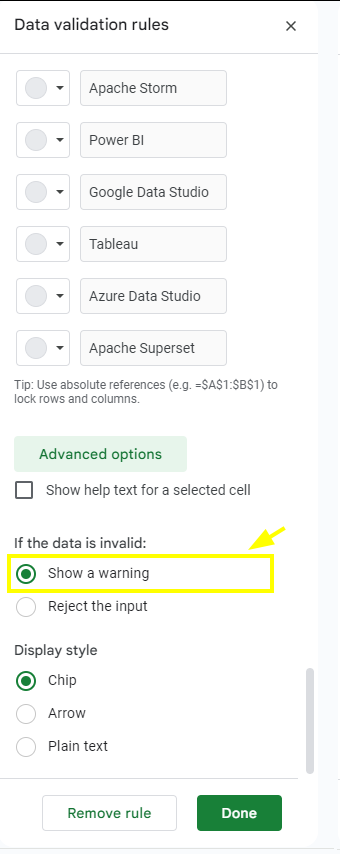
It won't show empty values.
- When I needed more than 30 values in the drop-down, it showed empty cells, so I removed them.
I added a search box to filter the values.
- As mentioned, it was difficult to choose many values from the drop-down, so I added this feature.
Drop-down
Code.gs
use this code and run & give the permission
function onOpen(e) {
  SpreadsheetApp.getUi()
    .createMenu('Multiple Select Data Validation')
    .addItem('Show dialog', 'showDialog')
    .addToUi();
}

function showDialog() {
  var html = HtmlService.createTemplateFromFile('Page').evaluate();
  SpreadsheetApp.getUi()
    .showSidebar(html);
}

var valid = function() {
  try {
    var values = SpreadsheetApp.getActiveRange().getDataValidation().getCriteriaValues()[0].getValues();
    // Filter out empty values
    var filteredValues = values.filter(function(row) {
      return row.some(function(cell) {
        return cell && cell.trim() !== '';
      });
    });
    return filteredValues;
  } catch (e) {
    return null;
  }
}

function fillCell(e) {
  var s = [];
  for (var i in e) {
    if (i.substr(0, 2) == 'ch') s.push(e[i]);
  }
  if (s.length) SpreadsheetApp.getActiveRange().setValue(s.join(', '));
}
Page.html
<div>
  <? var data = valid(); ?>
  <style>
    form input[type="text"] {
      padding: 5px;
      margin-bottom: 10px;
      width: 100%;
    }
    form input[type="checkbox"] {
      background-color: powderblue;
      padding: 5px 15px;
      border: none;
      border-radius: 100px;
    }
    form input[type="checkbox"]:hover {
      background-color: lightgrey;
      transform: scale(1.05);
    }
  </style>
  <form id="form" name="form">
    <input type="text" id="search" placeholder="Type to search..." oninput="filterCheckboxes()" />
    <div id="checkboxContainer">
      <? if (Object.prototype.toString.call(data) === '[object Array]') { ?>
        <? for (var i = 0; i < data.length; i++) { ?>
          <? for (var j = 0; j < data[i].length; j++) { ?>
            <? if (data[i][j] && data[i][j].trim() !== '') { ?>
              <div class="checkbox-item">
                <input type="checkbox" id="ch<?= '' + i + j ?>" name="ch<?= '' + i + j ?>" value="<?= data[i][j] ?>">
                <label for="ch<?= '' + i + j ?>"><?= data[i][j] ?></label>
              </div>
            <? } ?>
          <? } ?>
        <? } ?>
      <? } else { ?>
        <p>Maybe current cell doesn't have <a href="https://support.google.com/drive/answer/139705?hl=en">Data validation...</a></p>
      <? } ?>
    </div>
    <br>
    <input type="button" value="fill current" onclick="google.script.run.fillCell(this.parentNode)" />
    <br>
    <br>
    <input type="button" value="get validation from current" onclick="google.script.run.showDialog()" />
    <br>
    <br>
    <input type="reset" value="reset checkbox selections" />
  </form>
  <script>
    function filterCheckboxes() {
      var searchValue = document.getElementById('search').value.toLowerCase();
      var checkboxes = document.querySelectorAll('#checkboxContainer .checkbox-item');
      checkboxes.forEach(function(item) {
        var label = item.querySelector('label').textContent.toLowerCase();
        if (label.includes(searchValue)) {
          item.style.display = '';
        } else {
          item.style.display = 'none';
        }
      });
    }
  </script>
</div>
Reference:
Multiple Selection Data Validation in Google Sheets - YouTube
]]>Class and Objects
Class is a blueprint.
An object is a real entity.
NOTE : Don't confuse with these names they all same meaning
States = attributes = properties
Behavior = functions/methods
package practiceJava;

//Car class definition
class Car {
 // Properties
 private String color;
 private String model;
 private double kilometers;

 // Constructor (initialize properties)
 public Car(String color, String model) {
     this.color = color;
     this.model = model;
     this.kilometers = 0.0; // Initialize kilometers to zero
 }

 // Methods
 public void start() {
     System.out.println("Car engine started.");
 }

 public void stop() {
     System.out.println("Car engine stopped.");
 }

 public void drive(double distance) {
     kilometers += distance;
     System.out.println("Car driven " + distance + " km. Total kilometers: " + kilometers);
 }

 public void reverse(double distance) {
     kilometers -= distance;
     System.out.println("Car reversed " + distance + " km. Total kilometers: " + kilometers);
 }

 public static void main(String[] args) {
     // Create a car object
     Car myCar = new Car("Red", "Toyota");

     // Perform actions
     myCar.start();
     myCar.drive(50.5);
     myCar.reverse(10.2);
     myCar.stop();
 }
}
output
Car engine started.
Car driven 50.5 km. Total kilometers: 50.5
Car reversed 10.2 km. Total kilometers: 40.3
Car engine stopped.
constructor
What is a Constructor?
A constructor in Java is a special method used to initialize objects.
It is called when an instance (object) of a class is created.
Constructors allow us to set initial values for object attributes.
Key Points about Constructors:
Constructors have the same name as the class they belong to.
They do not have a return type (not even
void).Constructors are called automatically when an object is created using the
newkeyword.If you don’t define any constructors, Java provides a default constructor (with no arguments) for your class.
Types of Constructors:
Default Constructor: No arguments, provided by Java if not explicitly defined.
Parameterized Constructor: Accepts arguments to initialize object properties.
Copy Constructor: Creates a new object by copying values from an existing object.
Example
package practiceJava;

class Car {
    private String make;
    private String model;

    // Parameterized constructor
    public Car(String make, String model) {
        this.make = make;
        this.model = model;
    }

    // Copy constructor
    public Car(Car otherCar) {
        this.make = otherCar.make; // Copy make
        this.model = otherCar.model; // Copy model
    }

    public void displayInfo() {
        System.out.println("Make: " + make);
        System.out.println("Model: " + model);
    }

    public static void main(String[] args) {
        // Create an original car
        Car originalCar = new Car("Tata", "safari");

        // Create a copy using the copy constructor
        Car copiedCar = new Car(originalCar);

        // Display info for both cars
        System.out.println("Original Car:");
        originalCar.displayInfo();

        System.out.println("\nCopied Car:");
        copiedCar.displayInfo();
    }
}
Output
Original Car:
Make: Tata
Model: safari

Copied Car:
Make: Tata
Model: safari
Types of variables/methods
Static variables and methods
Static variables (also known as class variables) are associated with the class itself, not with any specific instance (object) of the class.
They are declared using the
statickeyword.There is only one copy of a static variable shared among all instances of the class.
Static variables are initialized when the class is loaded into memory and exist throughout the program’s execution.
Non-Static (Instance) Variables:
Instance variables are specific to each instance (object) of the class.
They are declared without the
statickeyword.Each object has its own copy of instance variables.
Instance variables are initialized when an object is created and exist as long as the object is in memory.
Local Variables:
Local variables are declared within a method, constructor, or block.
They are temporary and exist only within the scope where they are defined.
package practiceJava;

public class Student {
    // Static variable
    static String schoolName = "ABC High School";

    // Non-static variables
    String studentName;
    int grade;

    public Student(String name, int grade) {
        this.studentName = name;
        this.grade = grade;
    }

    public void printMessage() {
        String message = "Hello!"; // Local variable
        System.out.println(message);
    }

    public void displayInfo() {
        System.out.println("School Name: " + schoolName);
        System.out.println("Student Name: " + studentName);
        System.out.println("Grade: " + grade);
    }

    public static void main(String[] args) {
        Student student1 = new Student("mr kk", 10);
        Student student2 = new Student("mr rk", 11);

        student1.displayInfo();
        student2.displayInfo();
        student2.printMessage();
    }
}
this -used to refer current class instance variableoutput
School Name: ABC High School
Student Name: mr kk
Grade: 10
School Name: ABC High School
Student Name: mr rk
Grade: 11
Hello!
example for static method
class Helper {
         public static int sum(int a, int b) {
             return a + b;
         }
     }


     public class Main {
         public static void main(String[] args) {
             int n = 3, m = 6;
             int s = Helper.sum(n, m);
             System.out.println("Sum is = " + s);
         }
     }
example for non static method (instance method)
class Helper {
         public int sum(int a, int b) {
             return a + b;
         }
     }

     public class Main {
         public static void main(String[] args) {
             int n = 3, m = 6;
             Helper g = new Helper();
             int s = g.sum(n, m);
             System.out.println("Sum is = " + s);
         }
     }
Encapsulation
Encapsulation promotes data hiding and protects the internal details of a class from external access. It allows you to bundle data (variables) and methods (functions) together into a single unit, ensuring that the implementation details are hidden from other classes.
example,
Two class, one is
Bankand another one isCustomerRules,
customer can only view the minimum balance.
not allow to edit
minimumBalanceif they enter less than 2500.
    public static class Bank {
        public static String bankName = "Reserve bank";
        private int minimumBalance = 2500;

        public int getMinimumBalance() {
            return minimumBalance;
        }

        public void setMinumBalance(int minBal) {
            if (minBal >= 2500) {
                this.minimumBalance = minBal;
            }
            else {
                System.out.println("not allowed to set minimum balance less than 2500");
            }
        }

    }

    public static class Customer {

        public static void main(String[] args) {
            Bank customerA = new Bank();
            int minbal = customerA.getMinimumBalance();

            System.out.println("minimum balance :" + minbal);
            customerA.setMinumBalance(2400);
        }

    }
Inheritance
subclass (child)
superclass (parent)
To inherit from a class, use the extends keyword.
Types of Inheritance:
Single Inheritance: single parent and single child
Multilevel Inheritance: (Grand child)
Hierarchical Inheritance: single parent multiple child's.
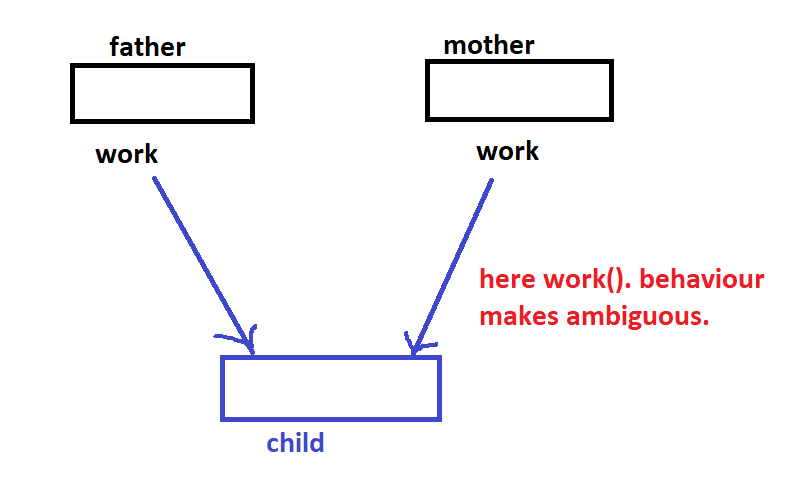
Multiple Inheritance (Not Supported in Java): Multiple parents. can achieve using interface.
multiple inheritance, example
protected access modifier
- anyone can access if same package
- if other package child can only able to access.
class Animal {
    void eat() {
        System.out.println("Animal is eating.");
    }
}

class Dog extends Animal {
    void bark() {
        System.out.println("Dog is barking.");
    }
}
Polymorphism
Polymorphism means "many forms".
class Animal {
  public void animalSound() {
    System.out.println("The animal makes a sound");
  }
}

class Pig extends Animal {
  public void animalSound() {
    System.out.println("The pig says: wee wee");
  }
}

class Dog extends Animal {
  public void animalSound() {
    System.out.println("The dog says: bow wow");
  }
}
Abstraction
Data abstraction is the process of hiding certain details and showing only essential information to the user
use abstract - to declare.
Note: if one method is abstract then class should declare as abstract.
// Abstract class
abstract class Animal {
  // Abstract method (does not have a body)
  public abstract void animalSound();
  // Regular method
  public void sleep() {
    System.out.println("Zzz");
  }
}

// Subclass (inherit from Animal)
class Pig extends Animal {
  @Override
  public void animalSound() {
    // The body of animalSound() is provided here
    System.out.println("The pig says: wee wee");
  }
}

class Main {
  public static void main(String[] args) {
    Pig myPig = new Pig(); // Create a Pig object
    myPig.animalSound();
    myPig.sleep();
  }
}
Interface
An interface is a completely "abstract class" that is used to group related methods with empty bodies
// Interface
interface Animal {
  public void animalSound(); // interface method (does not have a body)
  public void sleep(); // interface method (does not have a body)
}

// Pig "implements" the Animal interface
class Pig implements Animal {
  public void animalSound() {
    // The body of animalSound() is provided here
    System.out.println("The pig says: wee wee");
  }
  public void sleep() {
    // The body of sleep() is provided here
    System.out.println("Zzz");
  }
}

class Main {
  public static void main(String[] args) {
    Pig myPig = new Pig();  // Create a Pig object
    myPig.animalSound();
    myPig.sleep();
  }
}
String
In Java, string is basically an object that represents sequence of char values. An array of characters works same as Java string. For example:
 char[] ch={'j','a','v','a','t','p','o','i','n','t'};
 String s=new String(ch);
same as
String s="javatpoint";
https://www.w3schools.com/java/java_ref_string.asp
]]>Architecture
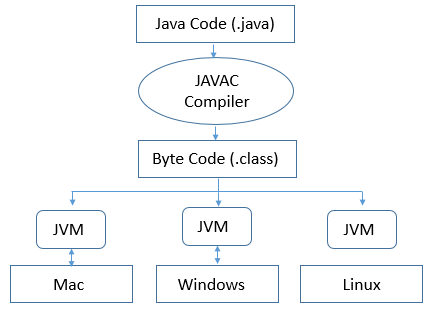
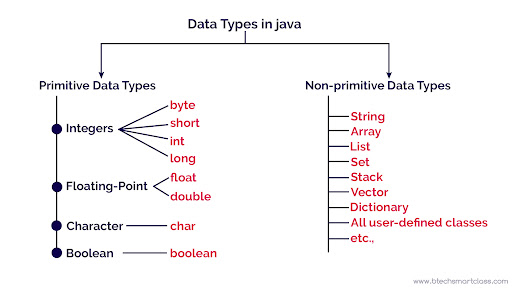
Data types
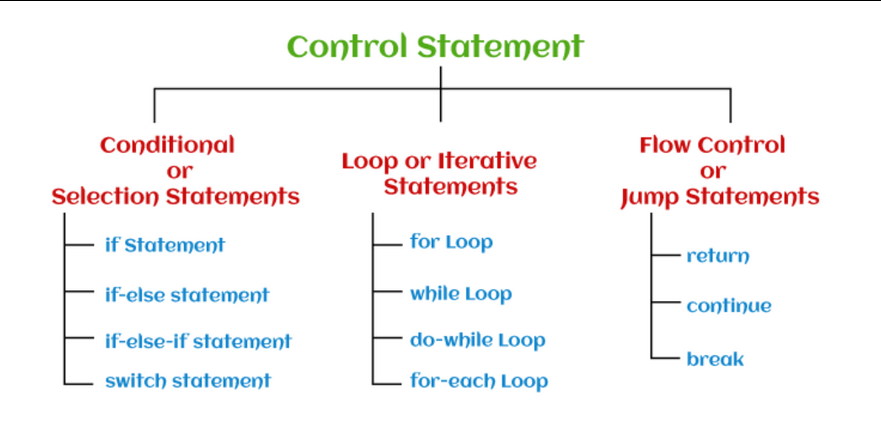
Control statement
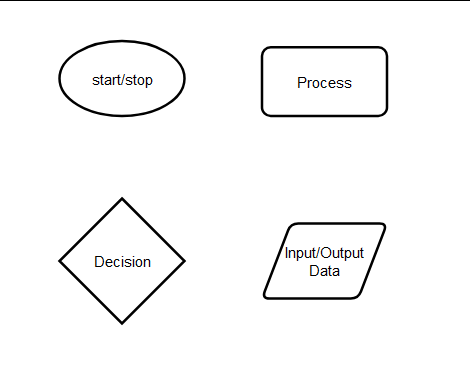
Flowchart
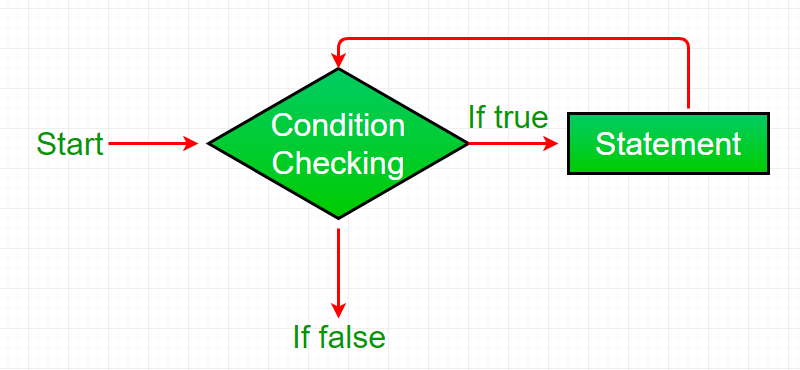
while loop
public class WhileLoopDemo {
        public static void main(String[] args) {
            int i = 1;
            while (i < 6) {
                System.out.println("Hello World");
                i++;
            }
        }
    }
Output
Hello 1
Hello 2
Hello 3
Hello 4
Hello 5
for loop
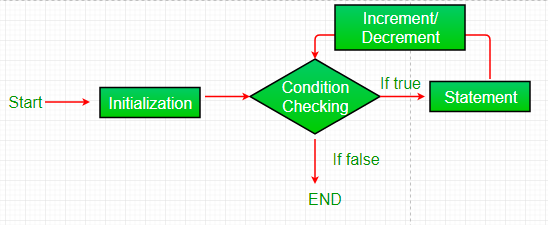
    public class ForLoopDemo {
        public static void main(String[] args) {

            for (int i = 1; i <= 5; i++) {
                System.out.println("Hello " + i);
            }
        }
    }
output
Hello 1
Hello 2
Hello 3
Hello 4
Hello 5
if else
    public class IfelseLoopDemo {
        public static void main(String[] args) {

            int value = 5;
            if (value == 5) {
                System.out.println("value is eq = 5");
            } else {
                System.out.println("value is not eq = 5");
            }
        }
    }
output
value is eq = 5
Break
The
breakstatement is used to terminate a loop early. When encountered inside a loop, it immediately exits the loop, skipping any remaining iterations.Example: Printing numbers from 0 to 9, but stopping when the value is 5
public class BreakExample {
    public static void main(String[] args) {
        for (int i = 0; i < 10; i++) {
            if (i == 5)
                break;
            System.out.println("i: " + i);
        }
        System.out.println("Out of Loop");
    }
}
output:
i: 0
i: 1
i: 2
i: 3
i: 4
Out of Loop
continue
The
continuestatement is used to skip the current iteration of a loop and proceed to the next iteration.Example: Printing numbers from 0 to 9, but skipping the value 4
public class ContinueExample {
    public static void main(String[] args) {
        for (int i = 0; i < 10; i++) {
            if (i == 4)
                continue;
            System.out.println(i);
        }
    }
}
output
0
1
2
3
5
6
7
8
9
Debugging in java
- it's very important to solve/find the error in your code.
How to Debug
set
BreakpointsDebug as
step over (F6)
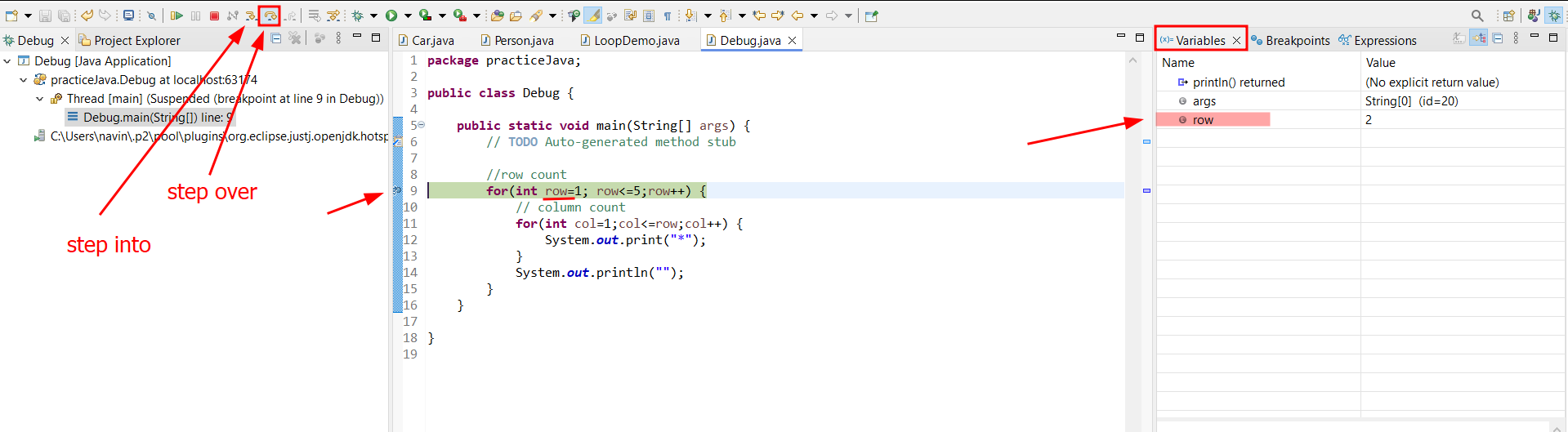
note: before i have used println so that i didn't get expected output. after debugging i find this. and changed to print
step over: executes the current line of code without entering method calls.
step into: enters the method call and executes its code line by line.
Arrays
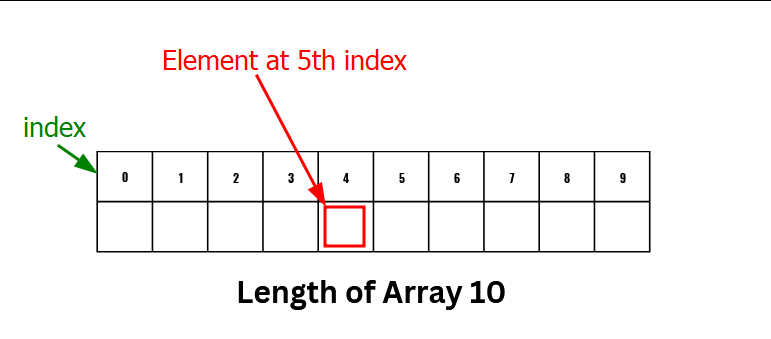
int[] arr={10,20,30,40};
// access the element
System.out.println("Element at 4th place"+arr[3]);
Methods
A method is a block of code which only runs when it is called.
You can pass data, known as parameters, into a method.
public class MethodDemo {

    public static void main(String[] args) {
        // method call
        int res = sumOfTwoNum(10, 5);
        System.out.println(res);
    }

    // method creation
    public static int sumOfTwoNum(int a, int b) {
        return a + b;
    }
}
static - means that the method belongs to the Main class (no need to create object for this)
not a problem if you not understand this keyword, you will understand this in next part of this java series.
]]>Relational Database Management Systems (RDBMS) works based on the ACID properties. Let’s dive into each of these properties:
Transaction refers to a logical unit of work that performs one or more database operations
Atomicity
All or nothing
- A transaction either happens completely or not at all.
Example,
Consider a bank transfer where money is being transferred from one account to another. If the credit operation succeeds, but the debit operation fails, the entire transaction will be rolled back to maintain atomicity.
Consistency
Ensures integrity constraints are maintained
- at any cost, transaction won't violate any database constraints (PK, FK, data types).
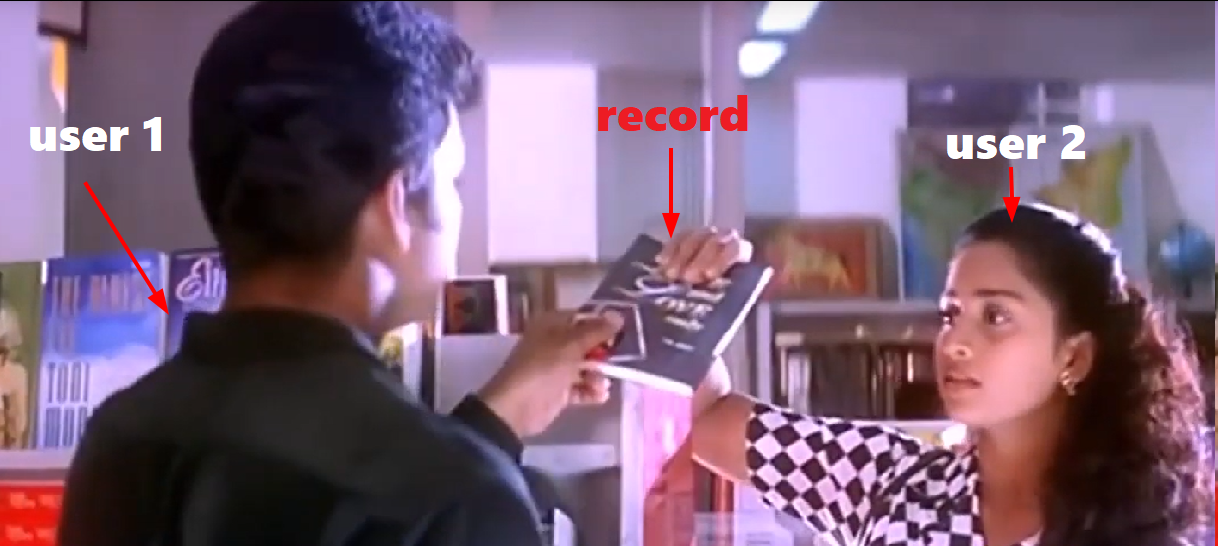
Isolation
Transactions are isolated from each other.
in database, single records can't able to access 2 users.
Example ,
Durability
Once a transaction is committed, its changes are permanent
Data is persisted after a transaction is committed even in a system failure. In a distributed system, this means the data is replicated to some other nodes.
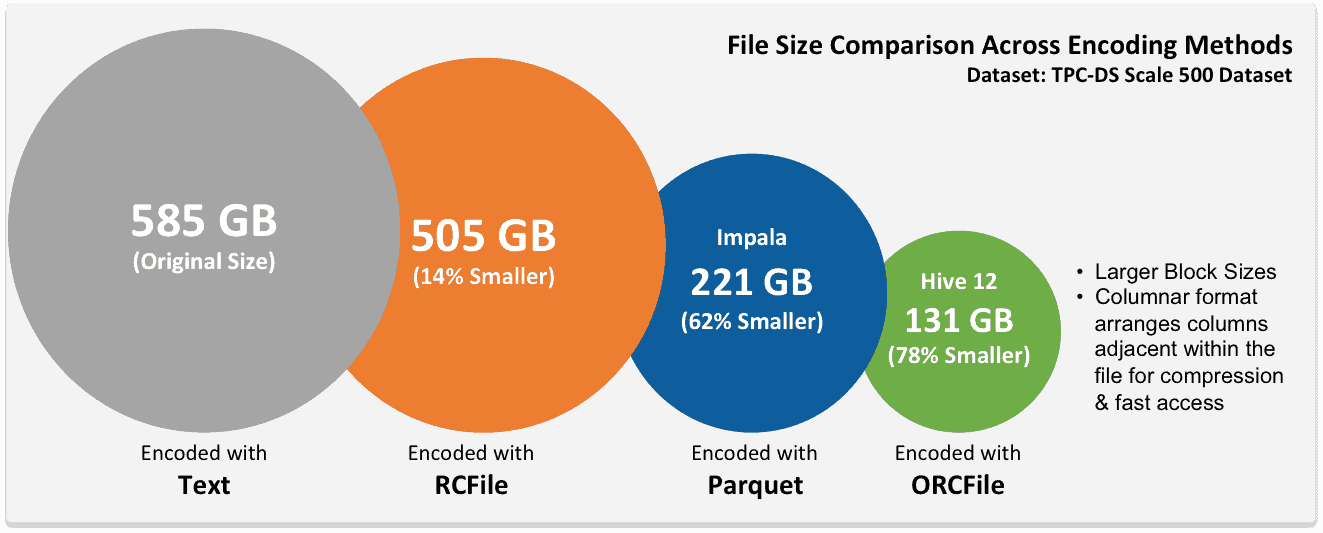
]]>smaller size
Acid properties (insert update delete)
Columnar storage for fast retrieval
Tables used
select * from orc_table; -- stored as ORC format table
select * from stage_pwb_table; -- stored as text format table
Create ORC table
create table orc_table (
  pid INT,
  pname STRING,
  drug STRING,
  gender STRING,
  tot_amt INT,
  country STRING
) row format delimited fields terminated by ',' stored as orc;
Insert data form stage_pwb_table table
insert into table orc_table select * from stage_pwb_table;
stage_pwb_table
create table stage_pwb_table (
  pid INT,
  pname STRING,
  drug STRING,
  gender STRING,
  tot_amt INT,
  country STRING
) row format delimited fields terminated by ',' stored as textfile;

-- load data to the stage table
load data local inpath '/home/navin/Documents/data1.txt'
into table stage_pwb_table;
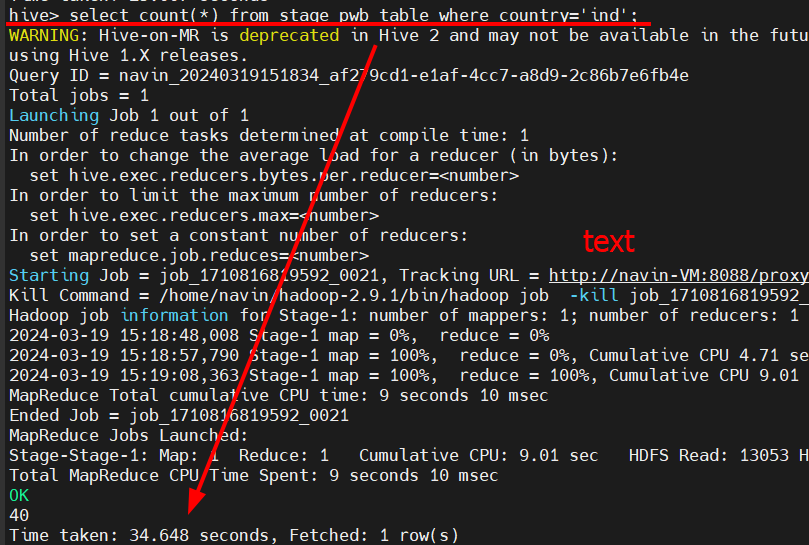
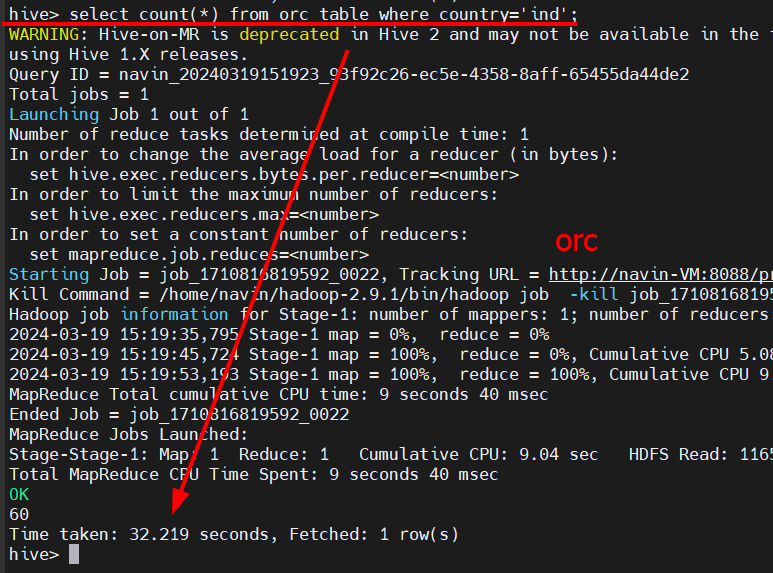
Time difference
select count(*) from orc_table where country='ind';
select count(*) from stage_pwb_table where country='ind';
here, I have used a very small data set. So that couldn't able to see the big difference
Reference:
https://www.youtube.com/watch?v=Mw5GynxCWoQ&t=5s
]]>In Hive, partitioning and bucketing are two techniques used for organizing and optimizing data storage and querying.
Hive Partition with bucket Example
Scenario: Consider a dataset containing drug sales details, and it contains 6 pid, pname, drug, gender, tot_amt, country.
Agenda : make partition column country column and bucket using pid column.
In this table, we were able to partition by using country column. Hereafter we couldn't partition further Since each record is unique. So that bucked using pid column into 3 buckets.
Note: here, small data set were used if you want to more details about bucket count then read this blog.
Create table partition with bucket
CREATE TABLE partition_bucketed(
    pid INT,
    pname STRING,
    drug STRING,
    gender STRING,
    tot_amt INT
) PARTITIONED BY(country STRING) CLUSTERED BY(pid) INTO 3 BUCKETS
Row format delimited fields terminated by ',' Stored as textfile;
-- insert records
INSERT INTO TABLE partition_bucketed PARTITION (country)
SELECT
  pid,
  pname,
  drug,
  gender,
  tot_amt,
  country
FROM
  stage_pwb_table DISTRIBUTE BY country;
Set below properties to create dynamic partition.
set hive.exec.dynamic.partition = true;
set hive.exec.dynamic.partition.mode = nonstrict;
set hive.enforce.bucketing = true;
Normal table:
Here, I have created one table to load the data from a text file. You can use temporary table also.
create table stage_pwb_table (
  pid INT,
  pname STRING,
  drug STRING,
  gender STRING,
  tot_amt INT,
  country STRING
) row format delimited fields terminated by ',' stored as textfile;
Load the data from text file
load data local inpath '/home/navin/Documents/data1.txt'
into table stage_pwb_table;
conclusion :
Do some POC to understand better. Use large data set to know the performance.
Reference:
]]>Steps
Calculate Expected Bucket Size:
- Divide the table size by the block size on Hadoop to get an initial estimate.
Expected Bucket Size = Table Size / Block Size on Hadoop
Find the Nearest Power of 2:
- Take the base-2 logarithm of the initial estimate to find the nearest power of 2.
n = log(Expected Bucket Size, 2)
Calculate Final Bucket Size:
- Use the rounded-off value to calculate the final bucket size by raising 2 to the power of the rounded value.
Bucket Size = 2 ^ Rounded Value
Example Calculation:
Assume:
Table Size = 2300 MB
Block Size on Hadoop = 128 MB
Calculate Expected Bucket Size:
Expected Bucket Size = 2300 / 128 = 17.96875Find the Nearest Power of 2:
n = log(17.96875, 2) ≈ 4.167418Round off to the Nearest Integer:
Rounded Value ≈ 5Calculate Final Bucket Size:
Bucket Size = 2^5 = 32
Result:
Therefore, the bucket size for the given example is 32.
Reference:
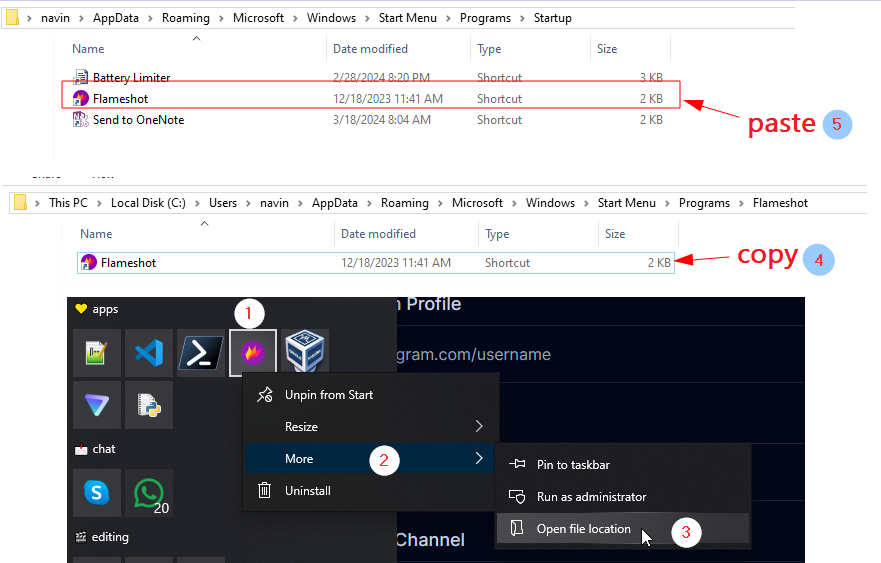
]]>press the Windows key / Super key + R, type shell:startup and hit enter
you will redirect to the startup folder.
Copy and paste the shortcut to the app from the file location to the Startup folder.
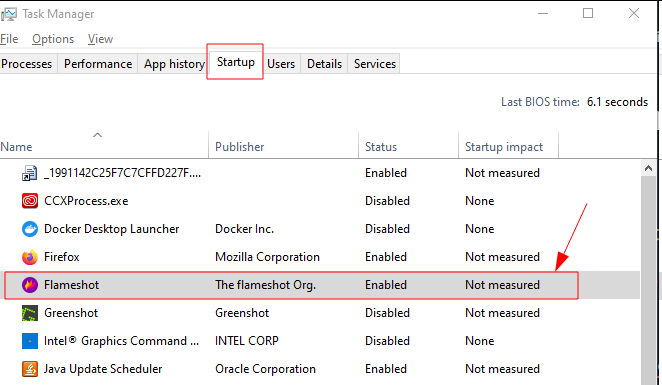
here, I have set 'Flameshot' application
after, it will appear in the startup menu
Set Environmental path
copy the directory where VirtualBox is installed (e.g.,
C:\Program Files\Oracle\VirtualBox)Add into environmental path variable
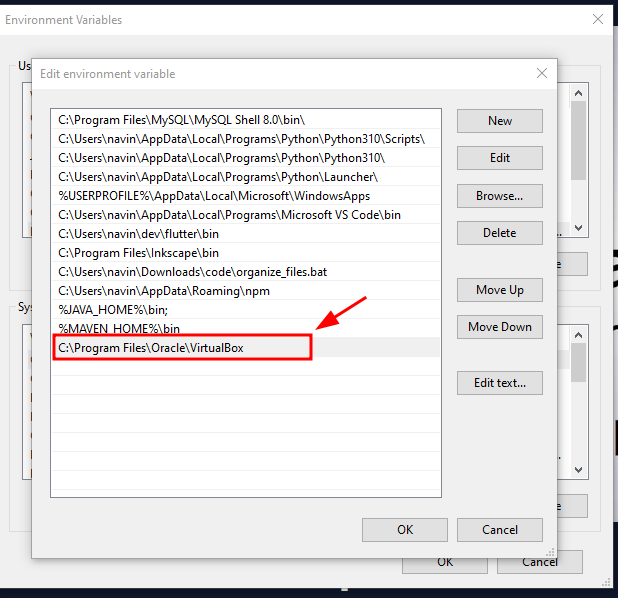
Commands to run vm in background
Start the vm
Syntax - VBoxManage startvm yourVM_name --type headless
VBoxManage startvm navinvm --type headless

Status of the VM
Syntax - VBoxManage showvminfo yourVM_name | Select-String "State"
VBoxManage showvminfo navinvm | Select-String "State"

VBoxManage list runningvms

Stop the VM
Syntax - VBoxManage controlvm yourVM_name poweroff
VBoxManage controlvm navinvm poweroff

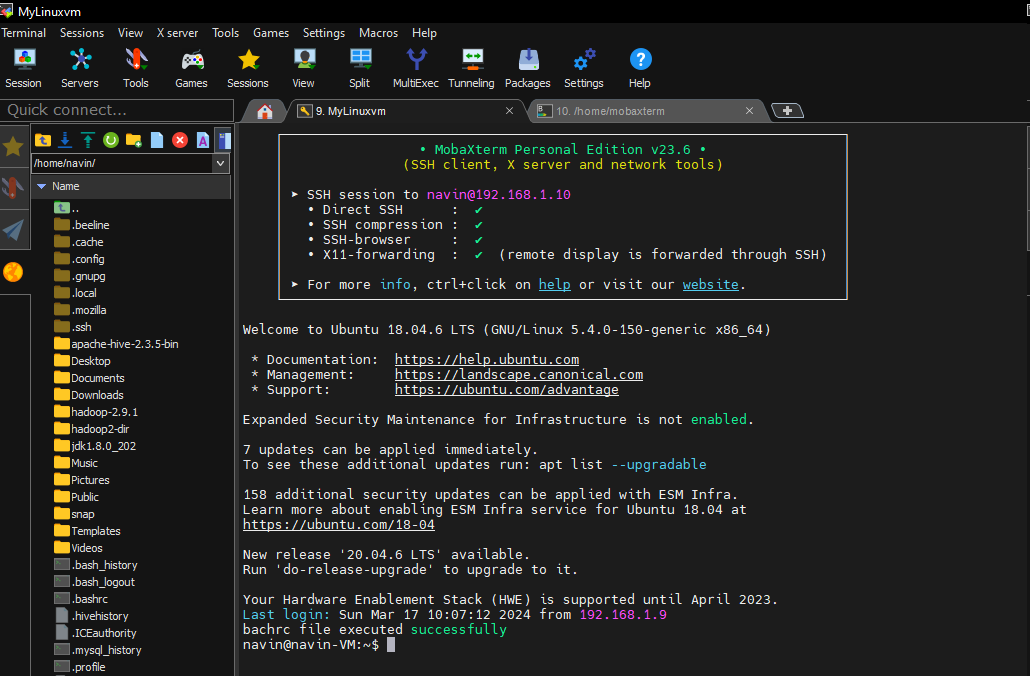
How to connect via PuTTY
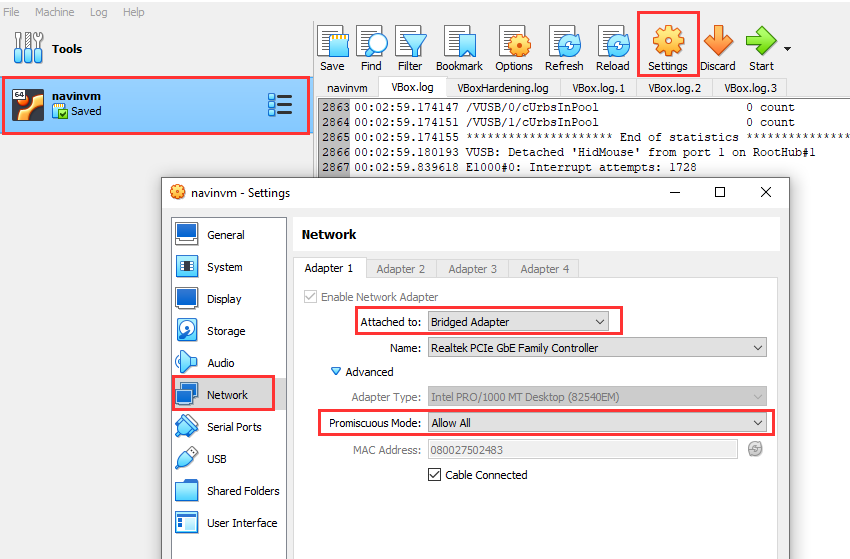
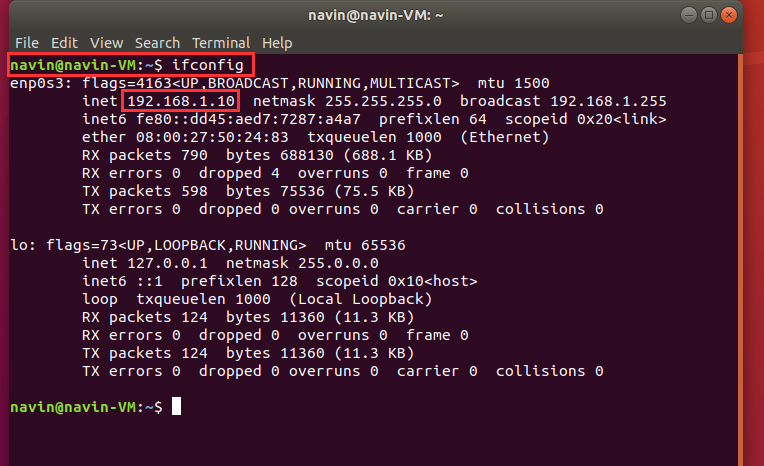
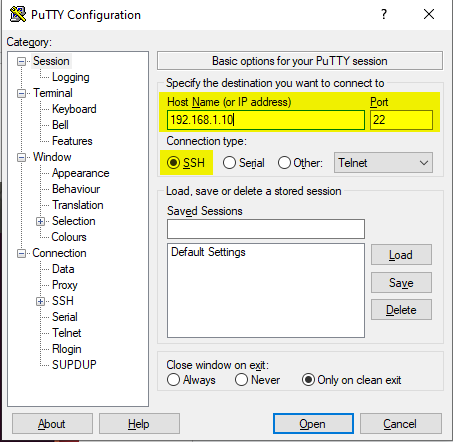
or You can use Mobaxterm
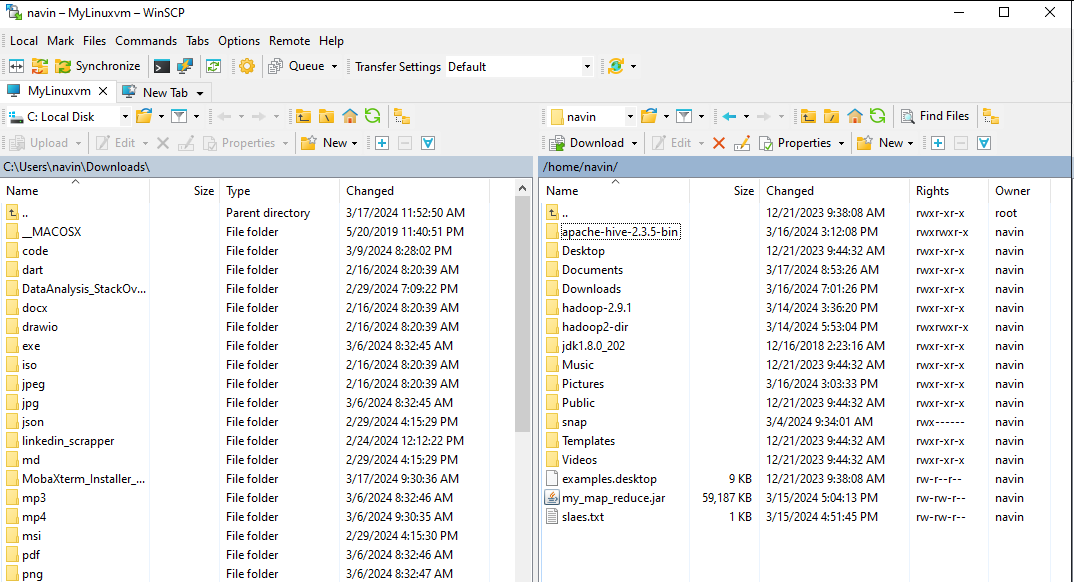
for file transfer, you can use either FileZilla or WinScp
What is Git?
Git is a tool that helps you keep track of changes in your computer files. It's like a time machine for your work, allowing you to see what you did, go back to earlier versions, and work with others on the same project without messing things up.
Git Workflow
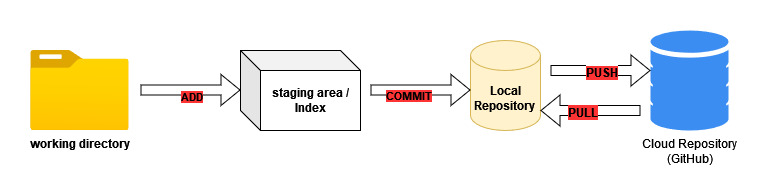
- Working directory: The current state of files on your local machine before any changes are committed.
- Staging area: A temporary area where changes are prepared before being committed to the local repository.
- Commit: A snapshot of changes that is saved in the local repository with a unique identifier.
- Local repository: A version control database on your local machine that stores committed changes and their history.
- Remote repository: A version control database hosted on a remote server, often used for collaboration and backup.
Git configuration
# version check
git --version git -v

# Configure Git
# Set the name
git config --global user.name "navinkumar"

# Set the email
git config --global user.email "[email protected]"

# Set the default editor  # here i set vscode code editor
git config --global core.editor "code --wait" # optional step

# configuration:
git config --list
Git Alias
# use "" if commmand have space
git config --global alias.lo "log --oneline"

git config --global alias.co checkout
git config --global alias.br branch
git config --global alias.ci commit
git config --global alias.st status

# To view the list of Git aliases that are currently set up on your system
git config --get-regexp alias
Starting a project
# Create a local repository
git init [project name]

# Make a local copy of the server repository
git clone [remote repo URL]
Local changes
# adding files to staging area
git add .
git add <file name>

# commit
git commit -m "commit message"

git add . && git commit -m "commit message"
Track changes / Inspecting
# Display the state of the working directory and the staging area
git status

# Track the changes that have not been staged:
git diff

# Track the changes that have staged but not committed:
git diff --staged

# Track the changes after committing a file:
git diff HEAD

# Track the changes between two commits:
git diff [commit1-sha] [commit2-sha]

# Git Diff Branches
git diff [branch 1][branch 2]

#To compare a file between two previous commits
git diff [commit1-sha]:file1.txt [commit2-sha]:file1.txt
Undoing changes
# reset commit or delete the commmit
git reset --soft [commitid sha]
git reset --hard [commitid sha] # not recommanded

# Revert a particular commit
git revert [commitid sha]
git revert --continue
Removing files
# Remove the files from the working tree and from the index
git rm
git rm [file name]

# Remove files from the Git But keep the files in your local repository
git rm --cached [file name]
Branch
# list the branch
git branch

# Switch between branches
git checkout [branch name]

# Create a new branch and switch to it
git checkout -b [branch name]

# Delete Branch
git branch -d [branch name]

# rename branch
git branch -m [old branch] [new branch]
Merging
# rebase
git rebase [branch 1] [branch 2]
git rebase --continue

# merge
git merge [branch 1] [branch 2]

# cherry pic
git cherry-pick [commitid-sha]

# stash
git stash
git stash pop

# To list history of stash
git stash list

# To pick specific stash commit
git stash pop [stash_commit id]
Remote
# Push data from remote server:
git push

# Pull data from remote server:
# Note: Before pushing data from your local repository, make sure to pull to avoid conflicts.
git pull

# set origin
# both push & pull
git remote set-url origin [URL]

# only for push
git remote set-url --push origin [URL]

# only for pull
git remote set-url --fetch origin [URL]
What is conventional commit
Conventional Commits is a specification for writing standardized commit messages. It provides a set of rules for creating a clear and conventional commit history. Each commit message follows a structured format that makes it easier to understand the changes in a repository.
Conventional commit format
<type>(<optional scope>): <description>

[optional body]

[optional footer]
Git conventional emoji
| Type | Emoji | Code | Description |
| feat | ✨ | :sparkles: | Introduce new feature |
| fix | 🐛 | :bug: | Fix a bug |
| docs | 📚 | :books: | Documentation updates |
| style | 💎 | :gem: | Code style changes |
| refactor | 🔨 | :hammer: | Code refactoring |
| perf | 🚀 | :rocket: | Performance improvements |
| test | 🚨 | :rotating_light: | Adding tests |
| build | 📦 | :package: | Build system changes |
| ci | 👷 | :construction_worker: | Continuous integration |
| chore | 🔧 | :wrench: | Other chores or tasks |
| init | 🌱 | :init: | Initial commit |
Reference:
https://gist.github.com/qoomon/5dfcdf8eec66a051ecd85625518cfd13
https://gitmoji.dev/ https://www.conventionalcommits.org/en/v1.0.0/
These scripts will automates file organization by categorizing files based on their extensions into individual directories within a parent directory.
Python (.py)
import os
import shutil

def fileOrganise(directory):
    # Iterate over files in the directory
    for element in os.listdir(directory):
        # Get the full path of the element
        full_path = os.path.join(directory, element)
        # Check if it's a file
        if os.path.isfile(full_path):
            # Split the file name based on the '.' delimiter and extract the last part
            parts = element.split(".")
            file_extension = parts[-1]
            # Create directory if not exists
            destDir = os.path.join(directory, file_extension)
            os.makedirs(destDir, exist_ok=True)
            # Move the file to the corresponding directory
            shutil.move(full_path, destDir)

if __name__ == '__main__':
    directory = os.getcwd()
    # directory = r"Enter your path to run this script"
    # example,
    # directory = r"C:\Users\navin\Downloads\New folder"
    fileOrganise(directory)
Shell (.sh)
#!/bin/bash

# Function to organize files in the directory based on their extensions
fileOrganise() {
    local directory="$1"

    # Iterate over files in the directory
    for element in "$directory"/*; do
        # Check if it's a file
        if [ -f "$element" ]; then
            # Get the file extension
            file_extension="${element##*.}"
            # Create directory if not exists
            destDir="$directory/$file_extension"
            mkdir -p "$destDir"
            # Move the file to the corresponding directory
            mv "$element" "$destDir"
        fi
    done
}

# Main script
main() {
    local parent_dir="$(pwd)"  # Use current directory as the parent directory
    # parent_dir="Enter your path to run this script"
    # example,
    # parent_dir="/c/Users/navin/Downloads/New folder"

    # Call the function to organize files
    fileOrganise "$parent_dir"
    echo "Files organized successfully in $parent_dir"
}

# Call the main function
main
Batch (.bat)
@echo off
setlocal enabledelayedexpansion

set "directory=%~1"
REM set "directory=(Enter your path to run this script)"
REM example,
REM set "directory=C:\Users\navin\Downloads\New folder"

REM Iterate over files in the directory
for %%i in ("%directory%\*") do (
    REM Check if it's a file
    if exist "%%i" (
        REM Get the file extension
        for /f "tokens=*" %%j in ("%%~xi") do (
            set "file_extension=%%j"
            REM Remove leading dots from file extension
            set "file_extension=!file_extension:~1!"
            echo "Processing file: %%i, Extension: !file_extension!"
            REM Create directory if not exists
            mkdir "%directory%\!file_extension!" 2>nul
            REM Move the file to the corresponding directory
            move "%%i" "%directory%\!file_extension!" >nul
        )
    )
)

echo Files organized successfully in %directory%

:end
Conclusion
These scripts will organize your files with just one click. You can find additional code in my GitHub repository.
If you have any suggestions, improvements, feel free to comment below
Cheers! 🎉
]]>What is a Virtual Environment?
A Python Virtual Environment is an isolated space where you can do your Python projects without mixing them up with the Python that's already installed on your computer.
Use the built-in venv module, which comes with Python 3.3 and later versions. Here's the step to create a virtual environment:
Step 1: Create a virtual environment
Open a Terminal or Command Prompt: Depending on your operating system, open a terminal or command prompt.
Navigate to the Desired Directory: Use the
cdcommand to navigate to the directory where you want to create your virtual environment. For example:cd /path/to/desired/directoryCreate the Virtual Environment: Run the following command to create a virtual environment named
myenv:python -m venv myenvReplace
myenvwith the desired name for your virtual environment.
Step 2: Activate the Virtual Environment:
Use the below command to activate the virtual environment:
myenv\Scripts\activateYou'll notice that your command prompt changes to indicate that you're now working within the virtual environment.
Install Packages (Optional): Once the virtual environment is activated, you can use
pipto install Python packages. For example:pip install package_nameDeactivate the Virtual Environment: When you're done working within the virtual environment, you can deactivate it by running the following command:
deactivate
This process creates an isolated Python environment where you can install packages independently. It's a good practice to use virtual environments for different projects to avoid conflicts between dependencies.
If you have questions or want to share your experiences, feel free to comment below. I'm here to help and engage with you.
Cheers! 🎉
]]>Introduction
The command line is a powerful tool for Linux users, providing efficient ways to navigate, manipulate, and manage the system. In this blog post, we'll explore 30 essential Linux commands that are frequently used by both beginners and experienced users.
File and Directory Management:
1. ls - List
Use ls to list the files and directories in the current working directory.
$ ls
file1.txt file2.jpg directory1
2. cd - Change Directory
Use cd to change the current working directory.
$ cd directory1
3. pwd - Print Working Directory
Use pwd to display the current working directory.
$ pwd
/home/username/directory1
4. cp - Copy
Use cp to copy files or directories.
$ cp file1.txt /destination
5. mv - Move
Use mv to move or rename files and directories.
$ mv file1.txt newfile.txt
6. rm - Remove
Use rm to delete files or directories.
$ rm file1.txt
7. mkdir - Make Directory
Use mkdir to create a new directory.
$ mkdir new_directory
8. rmdir - Remove Directory
Use rmdir to remove an empty directory.
$ rmdir directory1
9. touch - Create Empty File
Use touch to create an empty file.
$ touch newfile.txt
10. cat - Concatenate and Display
Use cat to display the contents of a file.
$ cat file1.txt
11. more - Display File Content Page by Page
Use more to display the contents of a file page by page.
$ more file1.txt
12. less - Display File Content with Navigation
Use less to display the contents of a file with navigation.
$ less file1.txt
13. head - Display Top Lines of a File
Use head to display the top lines of a file.
$ head file1.txt
14. tail - Display Bottom Lines of a File
Use tail to display the bottom lines of a file.
$ tail file1.txt
Text Searching and Processing:
15. grep - Global Regular Expression Print
Use grep to search for patterns in files.
$ grep "pattern" file.txt
16. find - Search for Files and Directories
Use find to search for files and directories.
$ find /path -name "filename"
Permissions and Ownership:
17. chmod - Change File Permissions
Use chmod to change the permissions of a file.
$ chmod +x script.sh
18. chown - Change File Ownership
Use chown to change the ownership of a file.
$ chown user:group file.txt
Process Management:
19. ps - Process Status
Use ps to display information about running processes.
$ ps aux
20. kill - Terminate a Process
Use kill to terminate a process by its ID.
$ kill PID
21. top - Display System Activity
Use top to display real-time system activity.
$ top
System Information:
22. df - Disk Free
Use df to display disk space usage.
$ df -h
23. du - Disk Usage
Use du to display disk usage of files and directories.
$ du -h
24. free - Display Free Memory
Use free to display free and used memory.
$ free -h
Networking:
25. scp - Secure Copy
Use scp to securely copy files between hosts.
$ scp file.txt user@remote:/path
26. ssh - Secure Shell
Use ssh to securely connect to a remote server.
$ ssh user@remote
27. wget - Web Get
Use wget to download files from the web.
$ wget http://example.com/file.txt
Archiving and Compression:
28. tar - Tape Archive
Use tar to archive and compress files.
$ tar -cvf archive.tar.gz files/
29. zip - Compress Files into a Zip Archive
Use zip to compress files into a zip archive.
$ zip archive.zip files/
Miscellaneous:
30. history - Command History
Use history to display command history.
$ history
Conclusion
In summary, these 30 Linux commands are essential for efficient system navigation and management. From file operations to process control and networking, mastering these commands is crucial for a seamless Linux experience.
If you have questions or want to share your experiences, feel free to comment below. I'm here to help and engage with you.
Cheers! 🎉
]]>