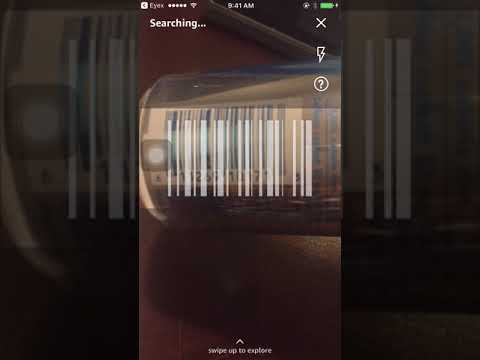
For many years, we can use Siri to accomplish some basic tasks on iPhones. This project aims to develop a similar assistant based on the vision of an iPhone -- what the camera sees in realtime, instead of voice input. Currently it supports one demo usage: call someother app on your iPhone based on the camera image input, and can recogonize 3 categories of images: bus stop, barcode and receipt. For example, when the camera 'sees' a bus stop, it will open another app called nj-bus to check the next bus schedule for you at that specific bus stop. If it 'sees' a barcode, it will open Amazon App to compare price. This vision assistant app acts just as a central gateway to delegate tasks to other apps, which makes it easier for adding other 3rd party support. This project includes the vision assistant app based on Tensorflow, and nj-bus app based on Google Clould API to check the bus stop information.

These instructions will get you a copy of the project up and running on your local machine for development and testing purposes. See deployment for notes on how to deploy the project on a live system.
- Xcode 7.3 or later, with the command-line tools installed.
- installing bazel
- Python
- Tensorflow
-
You'll need Xcode 7.3 or later, with the command-line tools installed.
-
Follow the instructions at tensorflow/contrib/makefile under "iOS" to compile a static library containing the core TensorFlow code.
-
From the root of the Tensorflow folder, download Inception v1, and extract the label and graph files into the data folders inside both the simple and camera examples:
mkdir -p ~/graphs
curl -o ~/graphs/inception5h.zip \
 https://storage.googleapis.com/download.tensorflow.org/models/inception5h.zip \
 && unzip ~/graphs/inception5h.zip -d ~/graphs/inception5h
cp ~/graphs/inception5h/* tensorflow/contrib/ios_examples/benchmark/data/
cp ~/graphs/inception5h/* tensorflow/contrib/ios_examples/camera/data/
cp ~/graphs/inception5h/* tensorflow/contrib/ios_examples/simple/data/-
Load the Xcode project inside the
simplesubfolder, and press Command-R to build and run it on the simulator or your connected device. -
You should see a single-screen app with a "Run Model" button. Tap that, and you should see some debug output appear below indicating that the example Grace Hopper image has been analyzed, with a military uniform recognized.
-
Once you have success there, make sure you have a real device connected and open up the Xcode project in the
camerasubfolder. Once you build and run that, you should get a live camera view that you can point at objects to get real-time recognition results.
Load the Xcode project inside the cloud-vision-master/ios subfolder, and follow the same steps as above to run the nj-bus app.
Follow this guid to retrain your own model for new categories
- Open demo image on your screen.
- Open the assistant app and move your iPhone to make the bus stop sign seen in your app.
- Hold about two or three seconds.
- Check if:
- the assistant app recogonizes it as 'bus stop'
- the nj-bus app is called and displays the right information about the bus schedule
You can repeat these tests with other images of Receipt or Barcode. (IQBoxy and Amazon app installed)
See this guid to reduce the app's memory size, which makes the app more stable.
Please read CONTRIBUTING.md for details on our code of conduct, and the process for submitting pull requests to us.
- Jun Guo - Initial work - ios-Vision-Assistant
See also the list of contributors who participated in this project.
Apache License 2.0 License.
- Used sample code from Tensorflow and Google Cloud Vision