-
Install PostgreSQL on the computer
-
Install python >=3.9
-
Google Chrome (latest version)
-
Install latest git version
- Create a folder in computer to storage the project file and open a terminal in this folder:
git clone https://github.com/dtepp/SMR.git
cd SMR
python -m venv venv
venv\Scripts\activate(windows) OR: source venv/bin/activate(mac)
pip install -r requirements.txt
-
Open pgAdmin program on your computer and create a Databases call SchoolMajor
-
Use the DataBase file to restore the SchoolMajor database


-
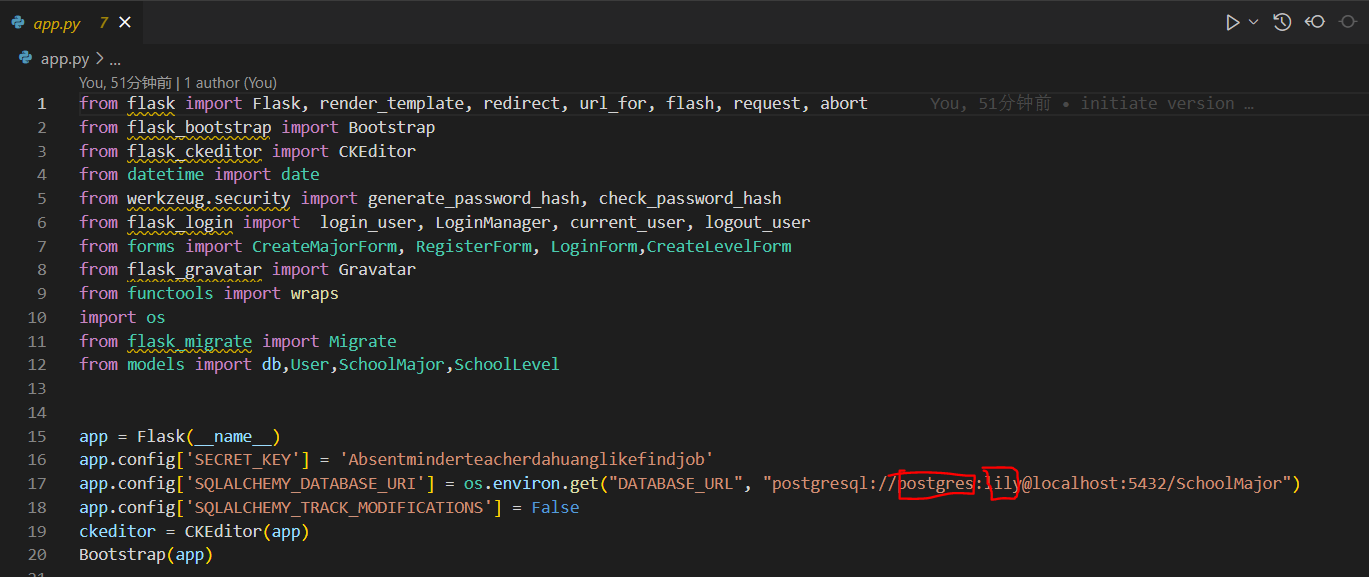
Change the defalut PostgreSQL username and password to your database username and password in app.py:
-
In project folder terminal using virtual environment:

flask db init
flask db migrate
flask db upgrade
flask run
Go to URL using web browser**http://127.0.0.1:5000 Or: Directly click the link on the frontend terminal
-
Download the mycryptobot.zip file.
-
Open the DialogFlow website and sign in with your account.
-
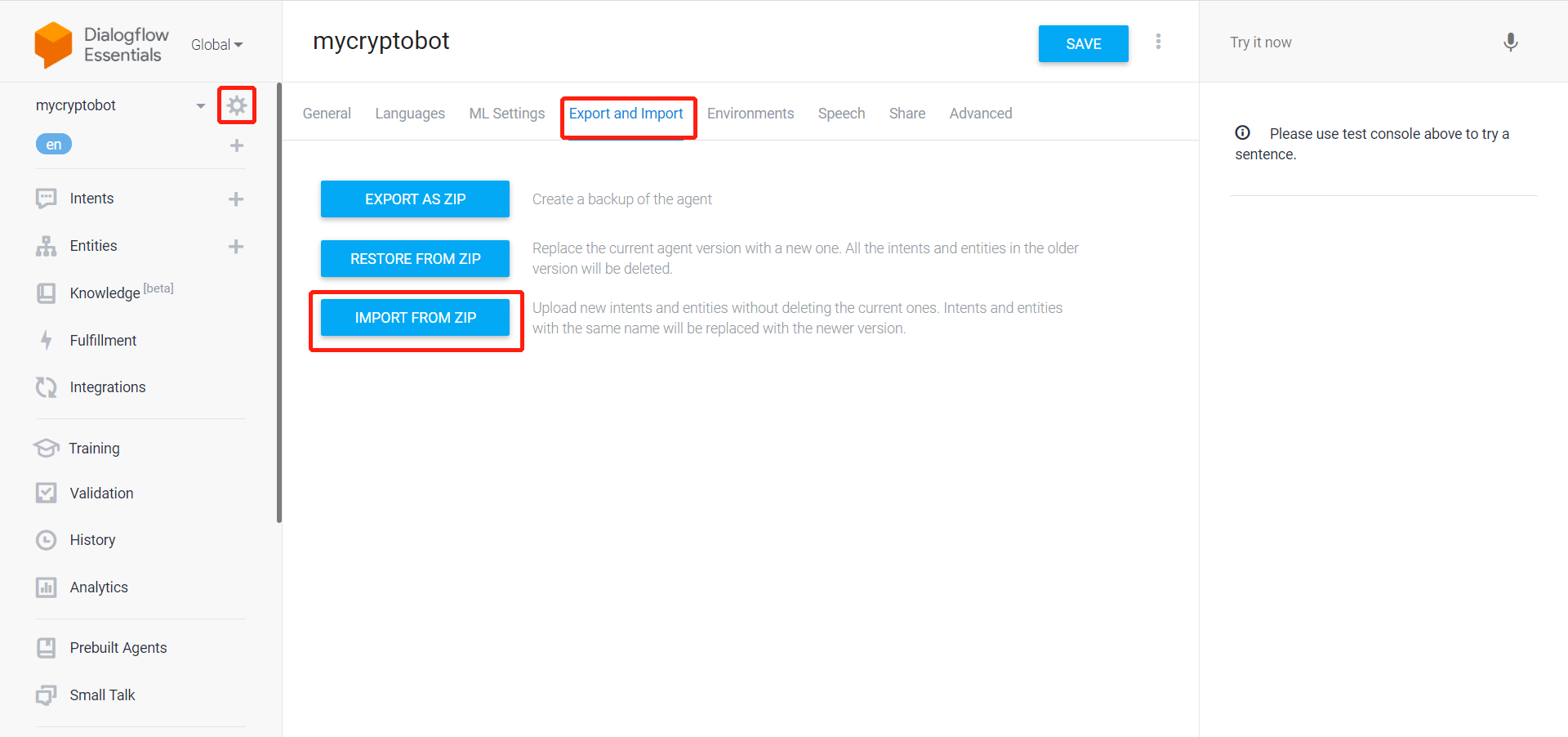
Go to Settings, and click Export and Import, and choose IMPORT FROM ZIP:
-
Download ngrok.exe or ngrok binary to your machine from ngrok.com, then:

cd into the folder holding ngrok.exe
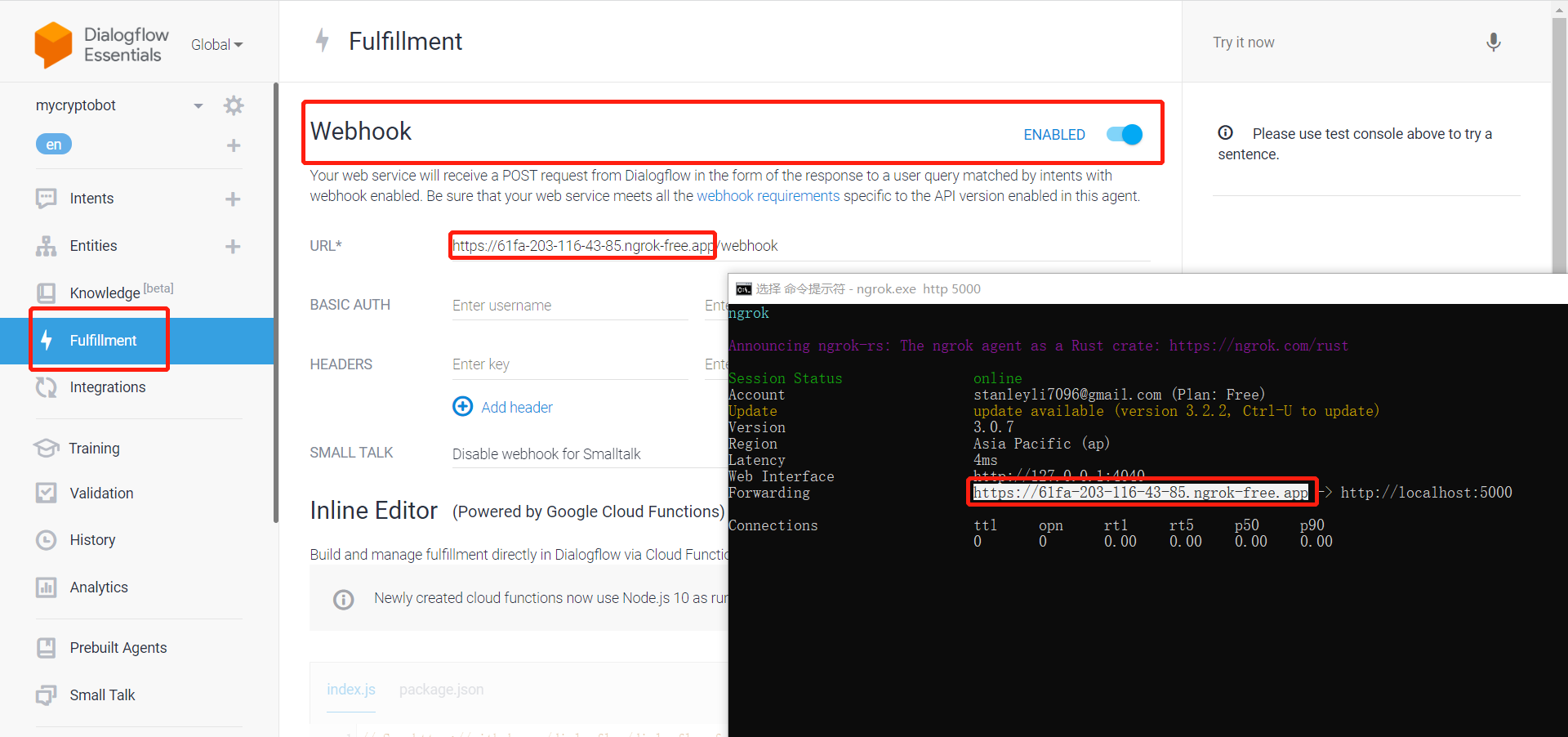
ngrok.exe http 5000
- Click Fulfillment on DialogFlow, and click the Enable button of the Webhook. Then copy the Forwarding link of the ngrok, and paste it in the URL line. Don't forget to add /webhook after the link: (Also DON'T forget to click SAVE at the bottom of the page)

In your Dialogflow, please note the left sidebar, and click Integrations and scroll down, find Telegram.
Click Telegram, and paste the Telegram Token:
6029920369:AAH43WlnyDpQCx6zHi0o0N2mG_tW9zezrzc

Then you can open your Telegram app, and search "UniversityRecommenderBot", you will find a bot named University_bot, click it and talk to it!