
This project produces four Openfire plugins, offocus, ofmeet, ofgasi and pade, combined, provide a unified communication solution for Openfire.
The pade project bundles various third-party products, notably:
- Jitsi Videobridge project;
- Jitsi Conference Focus (jicofo) project;
- Jitsi Meet web client.
- Pàdé web desktop client.
First, there are few things you need to know. These include:
-
ofmeet and offocus plugins do not work properly with Firefox. It works best with Chromium based apps like Chrome, Edge, Electron and Opera.
-
ofmeet and offocus plugins will not work out of the box if your Openfire server is configured to use LDAP 34. You would need to create the Jitsi focus bot user and give it owner/admin permissions to the MUC service manually.
-
ofmeet and offocus plugins have minimal network requirements and works out of the box internally on a local area network (LAN) or with a hosted Openfire server on the internet. If your Openfire server is placed behind a NAT and firewall and you want to allow external internet access, then you require some network expertise to configure it. You would need to open a few UDP/TCP ports and provide both the public and private IP addresses of your openfire server.
Download latest release from here and upload the pade.jar, ofmeet.jar and offocus.jar plugin files in any order from the admin web console of Openfire. Wait for both to appear in the plugins listing and then complete the following three steps to confirm it is working.
- Confirm the focus bot user has logged in ok like this. If not, check log files and get help from the igniterealtime community.

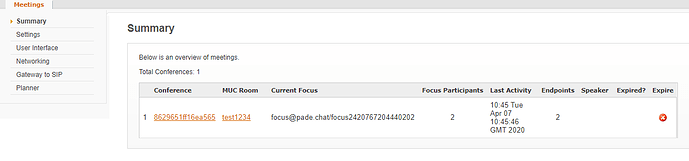
- If you have an active focus user, then you can do a quick peer-to-peer test with two browser tabs on your desktop. Open both of them to the same https://your_server:7443/ofmeet/testconf and confirm that it is showing in the conference summary like this
- If you get audio and video, then focus bot user is working ok and XMPP messages are passing around ok. If not, it is back to the log files and help from the community.
To confirm the video-bridge is working, you need to run the last step again with 3 users. If audio and video stops with third participant, then double check on the network configuration, making sure TCP port 7443 and UDP port 10000 are opened for listening from the openfire server. Otherwise, check the log files and ask for help from ignte-realtime community.
This project is a Apache Maven project
First edit the pom.xml file and change the default properties
    <properties>
        <project.build.sourceEncoding>UTF-8</project.build.sourceEncoding>
        <openfire.version>4.2.0</openfire.version>
        <videobridge.version>1.1-20191004.132308-120</videobridge.version>
        <jicofo.version>1.1-20191122.000029-86</jicofo.version>
        <jigasi.version>1.1-20190806.132856-49</jigasi.version>
        <jicoco.version>1.1-20190509.130302-15</jicoco.version>
        <pade.url>https://desktop-545pc5b:7443/apps/index.html</pade.url>
    </properties>
Build using the standard Maven invocation:
mvn clean package
After a successful execution, the four plugins should be available in these locations:
offocus/target/offocus.jar
ofmeet/target/ofmeet.jar
ofgasis/target/ofgasi.jar
pade/target/pade.jar
Binary packages for Pade as an Electron desktop application are also available in these locations
pade/target/pade-x.x.x-SNAPSHOT-darwin-64.zip
pade/target/pade-x.x.x-SNAPSHOT-linux-64.zip
pade/target/pade-x.x.x-SNAPSHOT-win-64.zip
Pade will be available as a web page and progressive web application from <pade.url>
For example - https://desktop-545pc5b:7443/pade