
Dispatch a Cloud Agent
Opening an issue in a local coding tool keeps you in the driver's seat. Dispatching a cloud agent means you don't have to be. Send the issue to Cursor, and the agent reads the debug package, writes the fix, and opens a pull request — while you move on to the next problem.
Before you start: Dispatching requires a Cursor API key configured at the project level by an admin, or a personal key set in your user settings. You also need an active Cursor account with API access, and the repository must be configured in Cursor.
Supported targets
- Cursor (available today)
- Claude, Codex, Devin, and others (coming soon)
How to dispatch an agent
- Open the issue you want to dispatch.
- Click Send to Cursor Cloud Agent in the issue header.
- Cursor creates the agent with the LogRocket prompt and debug package link.
- The agent's status updates inline in the LogRocket issue as it runs.
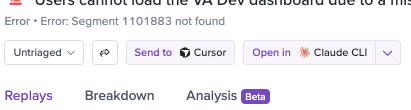
Dispatch agents on as many issues as you want in parallel — each one is tracked independently. Say you have ten open issues flagged as regressions. Dispatch an agent on each one. While you're in a planning meeting, Cursor works through them in parallel. You come back to a queue of draft PRs.
Configuration
Dispatching cloud agents requires a Cursor API key. Set it at the project level, per user, or both.
Project-wide API key (admins only)
Admins configure the project-wide Cursor API key under:
Settings → Integrations → Coding Tools → Cursor
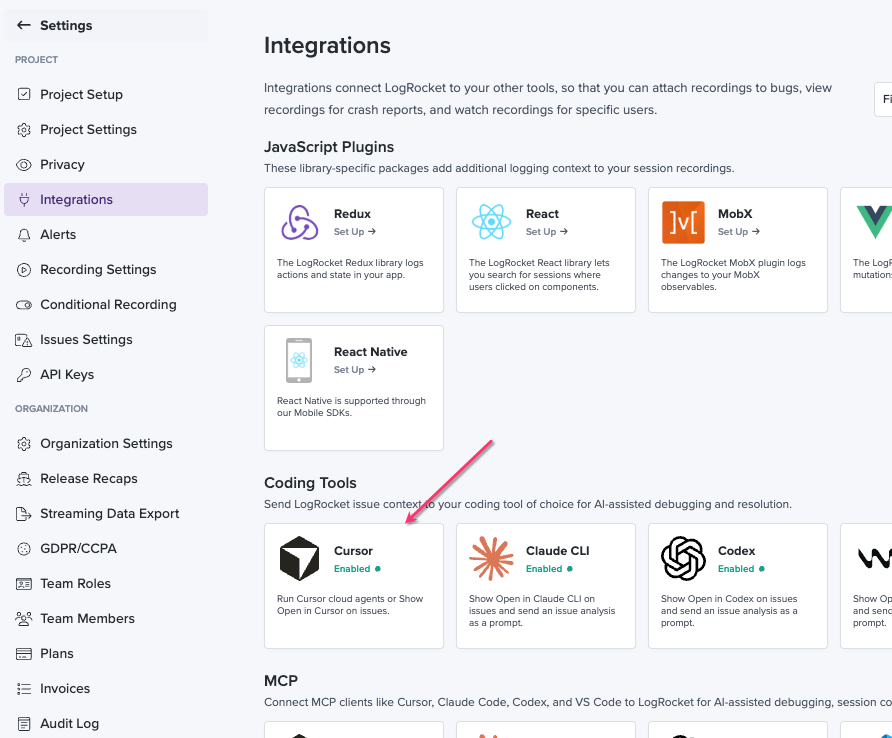
Every project member uses this key by default when they dispatch an agent.
Cursor Enterprise plan customers can use a service account API key. A service account is a non-personal Cursor identity that won't break if a teammate leaves or rotates their credentials. Service Accounts are only available for Cursor Enterprise plans. Personal API keys work, but a service account is what we recommend for a shared team integration.
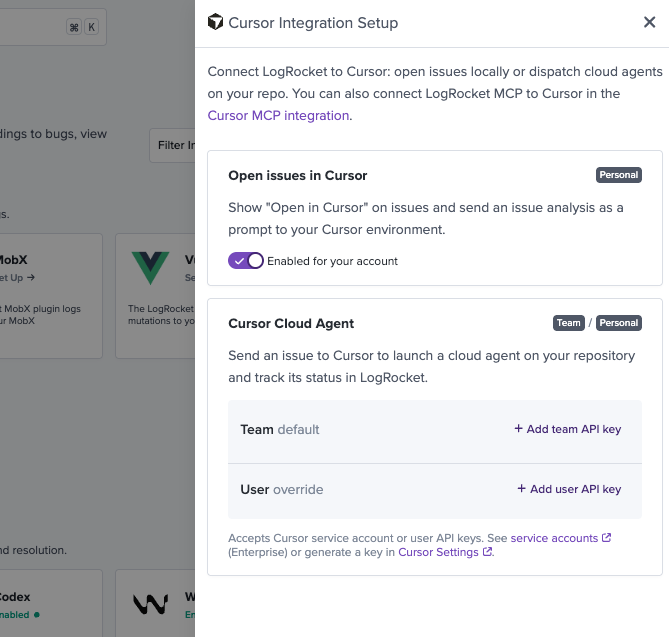
Personal API key (per-user override)
Any user can override the project-wide key with their own personal Cursor API key, set in their LogRocket user settings. Agents you dispatch run under your personal Cursor account — useful if you want runs attributed to you, or if you want to use a different Cursor seat than the team default.
Note: Personal API key overrides apply to manual dispatch only. Auto-dispatch always uses the project-wide key.
To revert to the project-wide key, clear the field and save.
Auto-dispatch Cursor agents on new severe issues
When auto-dispatch is enabled, LogRocket automatically launches a Cursor Cloud Agent whenever Galileo AI detects a new severe issue — no manual click required. The agent receives the same Galileo-generated prompt and debug package used for manual dispatch, and its status appears inline on the issue detail page as it runs.
How it works
- Galileo flags a new severe issue (red siren icon, natural language title). See Severe Issues for how severity is determined.
- LogRocket dispatches a Cursor Cloud Agent with the Galileo debug package.
- The agent's status updates inline on the issue detail page — the same tracking experience as manual dispatch.
- When the agent finishes, it opens a pull request in your repository.
Prerequisites
Before you can enable auto-dispatch, an admin must complete the following setup:
| Requirement | Where to configure |
|---|---|
| Galileo AI enabled | Settings → Issues Settings → Enable Galileo Access |
| Project-wide Cursor API key | Settings → Integrations → Coding Tools → Cursor Cloud Agent |
| Cursor account with repo access | Your Cursor dashboard — the API key's account must have access to the repository |
Auto-dispatch always uses the project-wide (team default) API key. It does not use individual users' personal API key overrides, even if team members have configured their own keys for manual dispatch.
Auto-dispatch is not available for self-hosted installationsLike Severe Issues, auto-dispatch relies on Galileo AI and is not yet available for self-hosted installations of LogRocket. Contact [email protected] with questions.
How to enable auto-dispatch
- Go to Settings → Issues Settings.
- Confirm Enable Galileo Access is toggled on.
- Configure the project-wide Cursor API key under Settings → Integrations → Coding Tools → Cursor if you haven't already. See Project-wide API key above.
- Toggle on Auto-dispatch Cursor agents on new severe issues.
- Save your changes.
Once enabled, every new severe issue Galileo detects will automatically trigger a Cursor Cloud Agent. You do not need to be in LogRocket when it fires.
Look for the Auto-dispatch Cursor agents on new severe issues toggle in the Galileo AI section at the top of the Issues Settings page, alongside Enable Galileo Access.
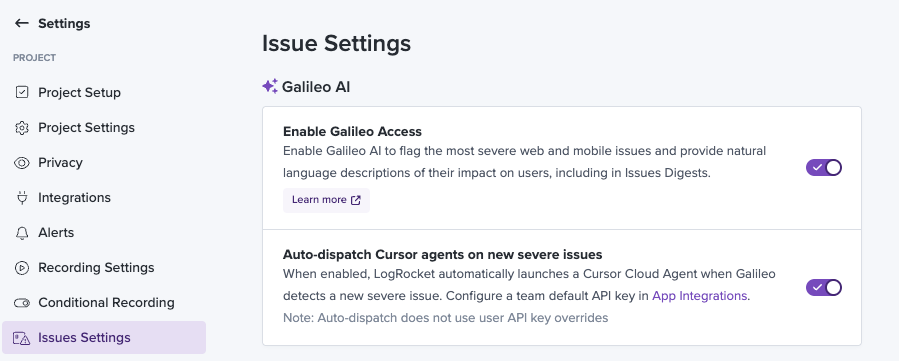
Auto-dispatch Cursor agents on new severe issues config
Auto-dispatch vs. manual dispatch vs. Issues Alerts
All three features can react to severe issues flagged by Galileo, but they serve different purposes:
| Manual dispatch | Auto-dispatch | Issues Alerts | |
|---|---|---|---|
| Trigger | You click Send to Cursor Cloud Agent on an issue | Galileo detects a new severe issue | Configurable alert on severe issues |
| Action | Sends issue to a Cursor Cloud Agent | Sends issue to a Cursor Cloud Agent | Notifies your team via Slack or webhook |
| API key used | Project-wide or personal override | Project-wide only | N/A |
| Best for | Fixes you want to choose, non-severe issues, or one-off dispatches | Hands-off fixes on the most critical new issues | Notifying the team without launching an agent |
Use Issues Alerts to notify your team in Slack. Use auto-dispatch when you want a fix started automatically. Use manual dispatch when you want to pick which issues get an agent.
Troubleshooting
"Send to Cursor Cloud Agent" is disabled or missing. No Cursor API key is configured for your project, and you don't have a personal one set. Ask an admin to configure the project-wide key, or set a personal key in your user settings.
The agent fails immediately after dispatch. Common causes:
- The API key is invalid or expired — rotate it in Cursor and update it in LogRocket.
- The Cursor account doesn't have access to the repo the issue points to.
- Cursor is reporting an outage — check Cursor status.
Status isn't updating in LogRocket. Cursor pushes status updates back on a polling cadence. Give it a minute. If it's been longer, refresh the issue page; if still stuck, contact LogRocket support.
I'm an admin and I don't see the Cursor settings. Make sure you're in the right project. Project-wide integrations are scoped to a single LogRocket project at a time.
Auto-dispatch didn't fire on an issue. Common causes:
- Auto-dispatch is disabled — check the toggle in Settings → Issues Settings.
- Galileo Access is off — auto-dispatch requires Galileo AI to detect severe issues. Enable Enable Galileo Access in Issues Settings.
- The issue isn't severe — auto-dispatch only fires for issues Galileo flags as severe (red siren icon). See Severe Issues.
- No project-wide API key configured — auto-dispatch requires a team default key in Settings → Integrations → Coding Tools → Cursor. Personal API keys do not work for auto-dispatch.
- The issue isn't new — auto-dispatch fires when Galileo detects a new severe issue, not when an existing issue's severity changes.
I don't see the auto-dispatch toggle. Your permissions may not include access to General Settings. Ask a project admin to enable it, or contact [email protected].