The February 2026 release This release includes the Python Environments extension... Keep on reading to learn more!
The post Python Environments Extension for VS Code appeared first on Microsoft for Python Developers Blog.
]]>Introducing the Python Environments Extension for VS Code
Python development in VS Code now has a unified, streamlined workflow for managing environments, interpreters, and packages. The Python Environments extension brings consistency and clarity to a part of Python development that has historically been fragmented across tools like venv, conda, pyenv, poetry, and pipenv. After a year in preview—refined through community feedback and real-world usage—the extension is being rolled out for general availability. Users can expect to have all environment workflows automatically switched to using the environments extension in the next few weeks or can opt in immediately with the setting python.useEnvsExtension. The extension works alongside the Python extension and requires no setup—open a Python file and your environments are discovered automatically.
A Unified Environment Experience

The extension automatically discovers environments from all major managers:
- venv
- conda
- pyenv
- poetry
- pipenv
- System Python installs
Discovery is powered by PET (Python Environment Tool), a fast Rust-based scanner that finds environments reliably across platforms by checking your PATH, known installation locations, and configurable search paths. PET already powers environment discovery in the Python extension today, so this is the same proven engine—now with a dedicated UI built around it. You can create, delete, switch, and manage environments from a single UI—regardless of which tool created them.
For most users, everything just works out of the box. If you have environments in non-standard locations, you can configure workspace-level search paths with glob patterns or set global search paths for shared directories outside your workspace.
Faster Environment Creation with uv
If uv is installed, the extension uses it automatically for creating venv environments and installing packages—significantly faster than standard tools, especially in large projects. This is enabled by default via the python-envs.alwaysUseUv setting.
Quick Create and Custom Create
Getting a new environment up and running is now just a click away. Quick Create (the + button in the Environment Managers view) builds an environment using your default manager, the latest Python version, and any workspace dependencies it finds in requirements.txt or pyproject.toml. You get a working environment in seconds.
When you need more control, Custom Create (via Python: Create Environment in the Command Palette) lets you choose your environment manager, Python version, environment name, and which dependency files to install from. Both venv and conda support creating environments directly from VS Code; for other managers like pyenv, poetry, and pipenv, the extension discovers environments you create with their respective CLI tools.
Python Projects: Environments That Match Your Code Structure

Python Projects let you map environments to specific folders or files. This solves common problems in monorepos, multi-service workspaces, mixed script/package repositories, and multi-version testing scenarios.
Adding a project is straightforward: right-click a folder in the Explorer and select Add as Python Project, or use Auto Find to discover folders with pyproject.toml or setup.py. Once a folder is a project, you can assign it its own environment—and that environment is used automatically for running, debugging, testing, and terminal activation within that folder.
Portable by design
When you assign an environment to a project, the extension stores the environment manager type—not hardcoded interpreter paths. This means your .vscode/settings.json is portable across machines, operating systems, and teammates. No more fixing broken paths after cloning a repo. Teammates can commit the settings, clone the workspace, run Quick Create, and be up and running immediately.
Scaffold new projects from templates
The Python Envs: Create New Project from Template command scaffolds a new project with the right structure. Choose between a Package template (with pyproject.toml, package directory, and tests) or a Script template (a standalone .py file with inline dependency metadata using PEP 723).
Multi-Project Testing
The Python extension now uses the Python Environments API to support multi-project testing. Each project gets its own test root, its own interpreter, and its own test discovery settings. This prevents cross-contamination between services and ensures each project uses the correct environment. For details, see the Multi-Project Testing guide.
Smarter Terminal Activation
The extension introduces a new terminal activation model with three modes, controlled by the python-envs.terminal.autoActivationType setting:
shellStartup— Activates your environment using VS Code terminal integration, so it’s ready before the first command runs. This is especially important if you use GitHub Copilot to run terminal commands, and will become the default in a future release.command— Runs the activation command visibly in the terminal after it opens (currently the default).off— No automatic activation, for users who prefer manual control.
You can also open a terminal with any environment activated by right-clicking an environment in the Environment Managers view and selecting Open in Terminal.
Predictable Interpreter Selection
Interpreter selection now follows a simple, deterministic priority order:
- A project’s configured environment manager
- The workspace’s default environment manager (only if you’ve explicitly set it)
python.defaultInterpreterPath(legacy)- Auto-discovery (
.venv→ system Python)
Only settings you explicitly configure are used. Defaults never override your choices. And importantly, opening a workspace never writes to your settings—the extension only modifies settings.json when you make an explicit change like selecting an interpreter or creating an environment.
Built-In Package Management
You can manage packages directly from the Environment Managers view—search and install packages, uninstall packages, or install from requirements.txt, pyproject.toml, or environment.yml. The extension automatically uses the correct package manager for each environment type (pip for venv, conda for conda environments, or uv pip when uv is enabled).
.env File Support
For developers who use environment variables during development, the extension supports .env files. Set python.terminal.useEnvFile to true and your variables are injected into terminals when they’re created—great for development credentials and configuration that shouldn’t live in source control. Configuring the path to the environment file with python.envFilePath is supported with the previous setting turned on.
Extensible by Design
The Python Environments extension isn’t just for the built-in managers. Its API is designed so that any environment or package manager can build an extension that plugs directly into the Python sidebar, appearing alongside venv, conda, and the rest. The community is already building on this—check out the Pixi Extension as an example of what’s possible.
Known Limitations
There are a couple of areas where integration is still catching up. We want to be upfront so you know what to expect. For the full list, see known issues in the documentation. If you run into an issue, report a bug — your VS Code version, Python extension version, and steps to reproduce help us resolve issues faster. If you need to get back to a stable state quickly, you can disable the extension without affecting the core Python extension.
What’s Next
This is just the beginning. The Python Environments extension lays the foundation for a more integrated, intelligent Python development experience in VS Code. Try the extension, share your feedback, and help us shape the future of Python tooling in VS Code.
Try out these new improvements by downloading the Python Environments extension from the Marketplace, or install them directly from the extensions view in Visual Studio Code (Ctrl + Shift + X or ⌘ + ⇧ + X). You can learn more about Python support in Visual Studio Code in the documentation. If you run into any problems or have suggestions, please file an issue on the Python VS Code GitHub page.
The post Python Environments Extension for VS Code appeared first on Microsoft for Python Developers Blog.
]]>The November 2025 release brings new Pylance features including improvements to Copilot Hover Summaries and a Code Action to convert wildcard imports to explicit imports. Keep on reading to learn more!
The post Python in Visual Studio Code – November 2025 Release appeared first on Microsoft for Python Developers Blog.
]]>We’re excited to announce that the November 2025 release of the Python extension for Visual Studio Code is now available!
This release includes the following announcements:
- Add Copilot Hover Summaries as docstring
- Localized Copilot Hover Summaries
- Convert wildcard imports Code Action
- Debugger support for multiple interpreters via the Python Environments Extension
If you’re interested, you can check the full list of improvements in our changelogs for the Python and Pylance extensions.
Add Copilot Hover Summaries as docstring
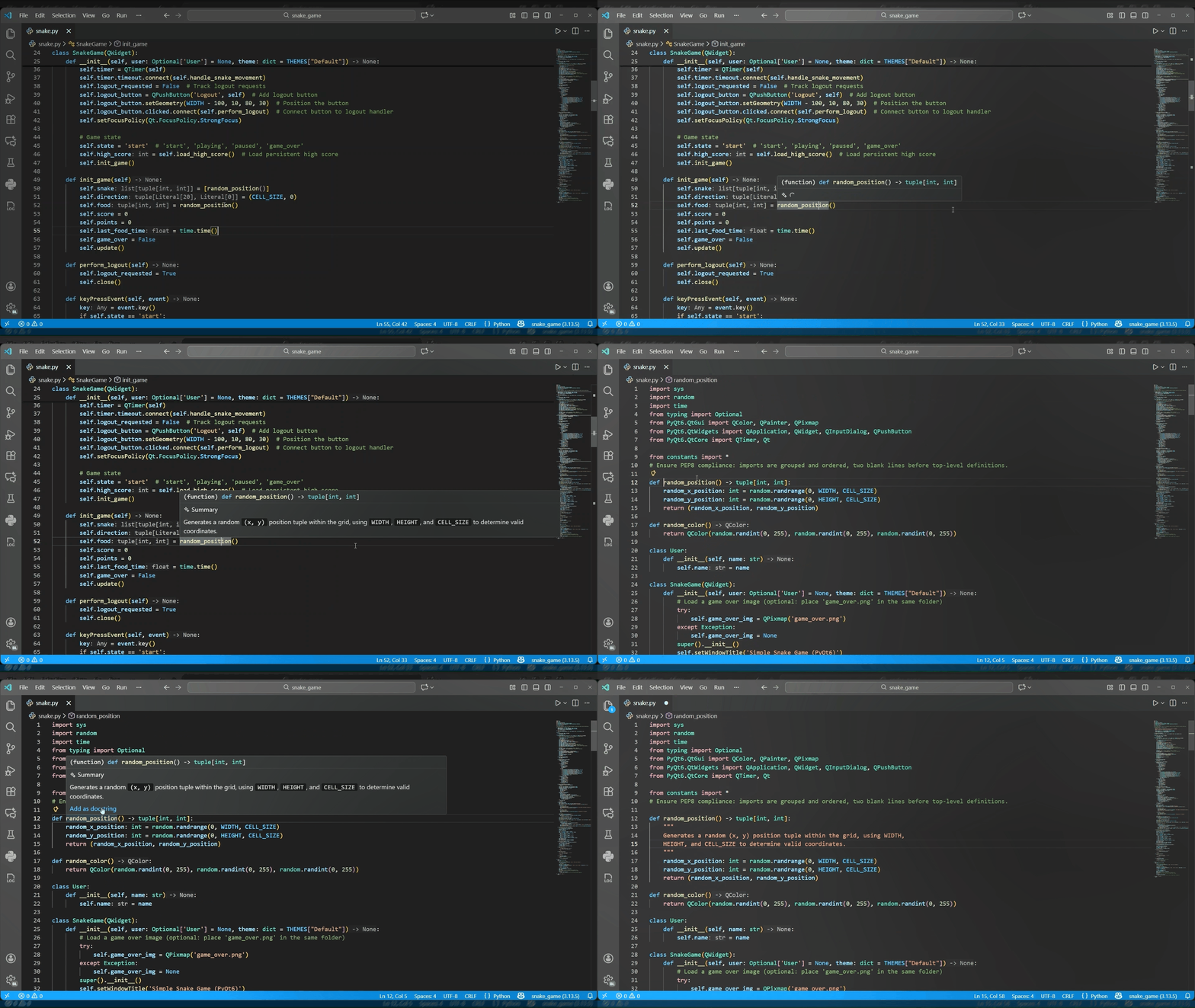
You can now add your AI-generated documentation directly into your code as a docstring using the new Add as docstring command in Copilot Hover Summaries. When you generate a summary for a function or class, navigate to the symbol definition and hover over it to access the Add as docstring command, which inserts the summary below your cursor formatted as a proper docstring.
This streamlines the process of documenting your code, allowing you to quickly enhance readability and maintainability without retyping.
Localized Copilot Hover Summaries
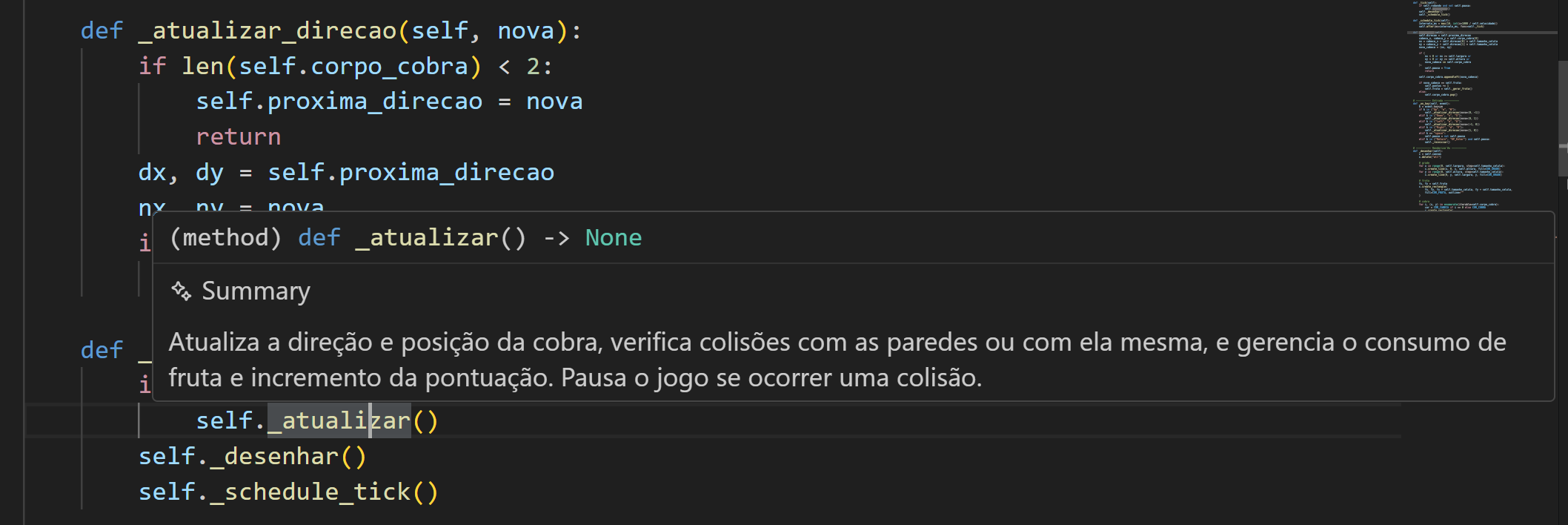
GitHub Copilot Hover Summaries inside Pylance now respect your display language within VS Code. When you invoke an AI-generated summary, you’ll get strings in the language you’ve set for your editor, making it easier to understand the generated documentation.
Convert wildcard imports into Code Action
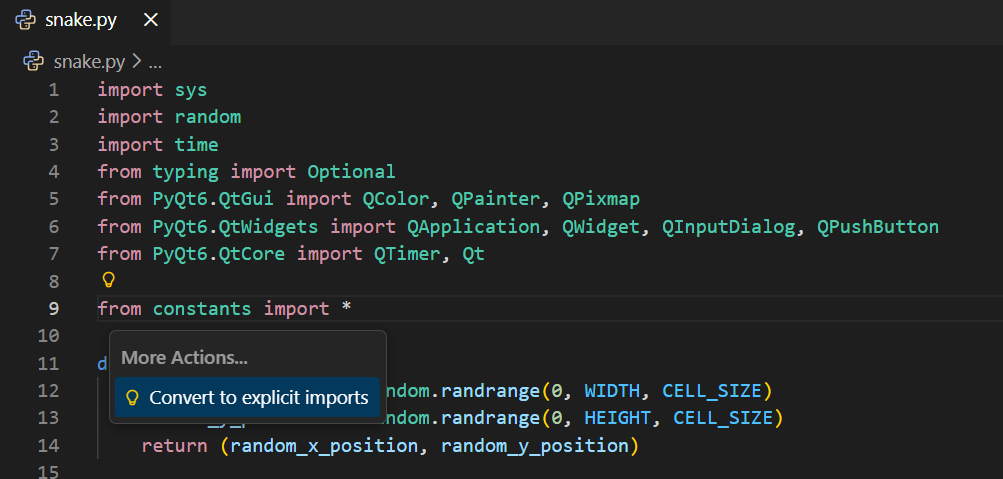
Wildcard imports (from module import *) are often discouraged in Python because they can clutter your namespace and make it unclear where names come from, reducing code clarity and maintainability.
Pylance now helps you clean up modules that still rely on from module import * via a new Code Action. It replaces the wildcard with the explicit symbols, preserving aliases and keeping the import to a single statement. To try it out, you can click on the line with the wildcard import and press Ctrl + . (or Cmd + . on macOS) to select the Convert to explicit imports Code Action.
Debugger support for multiple interpreters via the Python Environments Extension
The Python Debugger extension now leverages the APIs from the Python Environments Extension (vscode-python-debugger#849). When enabled, the debugger can recognize and use different interpreters for each project within a workspace. If you have multiple folders configured as projects—each with its own interpreter – the debugger will now respect these selections and use the interpreter shown in the status bar when debugging.
To enable this functionality, set “python.useEnvironmentsExtension”: true in your user settings. The new API integration is only active when this setting is turned on.
Please report any issues you encounter to the Python Debugger repository.
Other Changes and Enhancements
We have also added small enhancements and fixed issues requested by users that should improve your experience working with Python in Visual Studio Code. Some notable changes include:
- Resolve unexpected blocking during PowerShell command activation (vscode-python-environments#952)
- The Python Environments Extension now respects the existing python.poetryPath user setting to specify which Poetry executable to use (vscode-python-environments#918)
- The Python Environments Extension now detects both requirements.txt and dev-requirements.txt files when creating a new virtual environment for automatic dependency installation (vscode-python-environments#506)
We would also like to extend special thanks to this month’s contributors:
- @iBug: Fixed Python REPL cursor drifting in vscode-python#25521
Try out these new improvements by downloading the Python extension from the Marketplace, or install them directly from the extensions view in Visual Studio Code (Ctrl + Shift + X or ⌘ + ⇧ + X). You can learn more about Python support in Visual Studio Code in the documentation. If you run into any problems or have suggestions, please file an issue on the Python VS Code GitHub page.
The post Python in Visual Studio Code – November 2025 Release appeared first on Microsoft for Python Developers Blog.
]]>The October 2025 release of the Python and Jupyter extensions for Visual Studio Code are now available. This release includes improvements to the Python Environments extension, Copy Test ID functionality, and enhanced environment activation when using Copilot Chat. Keep on reading to learn more!
The post Python in Visual Studio Code – October 2025 Release appeared first on Microsoft for Python Developers Blog.
]]>We’re excited to announce that the October 2025 release of the Python extensions for Visual Studio Code are now available!
This release includes the following announcements:
- Python Environments extension improvements
- Enhanced testing workflow with Copy Test ID in gutter menu
- Shell startup improvements for Python environment activation
If you’re interested, you can check the full list of improvements in our changelogs for the Python and Pylance extensions.
Python Environments Extension Improvements
The Python Environments extension received several fixes and updates to enhance your Python development experience in VS Code. Highlights include improved performance and reliability when working with conda environments – now lauching code directly without conda run, a smoother environment flow with Python versions now sorted in descending order for easier acces to the latest releases, fixes for crashes when running Python files that use input(), and improvements to false-positive environment configuration warnings.
The extension also now automatically refreshes environment managers when expanding tree nodes, keeping your environment list up to date without any extra steps.
We appreciate the community feedback that helped identify and prioritize these improvements. Please continue to share your thoughts, suggestions and bug reports on the Python Environments GitHub repository as we continue rolling out this extension.
Enhanced Testing Workflow with Copy Test ID
We’ve improved the testing experience by adding a “Copy Test ID” option to the gutter icon context menu for test functions. This feature allows you to quickly copy test identifiers in pytest format directly from the editor gutter, making it easier to run specific tests from the command line or share test references with teammates.
Improved Shell Startup for Python Environment Activation
We have made improvements to shell start up to reduce issues where terminals created by GitHub Copilot weren’t properly activating Python virtual environments. With the new shell startup approach, you’ll get a more reliable environment activation across terminal creation methods while reducing redundant permission prompts.
Additionally, virtual environment prompts such as (.venv) now appear correctly when PowerShell is activated through shell integration, and we have resolved issues with activation in WSL.
To benefit from these improvements, set your python-envs.terminal.autoActivationType to shellStartup in your VS Code settings.
Other Changes and Enhancements
We have also added small enhancements and fixed issues requested by users that should improve your experience working with Python and Jupyter Notebooks in Visual Studio Code. Some notable changes include:
- Enhanced contributor experience with new Copilot Chat instruction files that provide guidance for testing features and understanding VS Code components when contributing to the Python extension (#25473, #25477)
- Updated debugpy to version 1.8.16 (#795)
We would also like to extend special thanks to this month’s contributors:
- Morikko: Upgraded jedi-language-server to 0.45.1 (#25450)
- cnaples79: Fixed mypy diagnostics parsing from stderr in non-interactive mode (#375)
- renan-r-santos: Display activate button when a terminal is moved to the editor window (#764)
- lev-blit: Added py.typed to debugpy distributed package (#1960)
Try out these new improvements by downloading the Python extension and the Jupyter extension from the Marketplace, or install them directly from the extensions view in Visual Studio Code (Ctrl + Shift + X or ⌘ + ⇧ + X). You can learn more about Python support in Visual Studio Code in the documentation. If you run into any problems or have suggestions, please file an issue on the Python VS Code GitHub page.
The post Python in Visual Studio Code – October 2025 Release appeared first on Microsoft for Python Developers Blog.
]]>Reviewed by: Sumit Sarabhai and Gaurav Sharma If you’ve worked with databases in Python, you know the boilerplate: open a connection, create a cursor, run queries, commit or rollback transactions, close cursors and connection. Forgetting just one cleanup step can lead to resource leaks (open connections) or even inconsistent data. That’s where context managers step […]
The post Simplifying Resource Management in mssql-python through Context Manager appeared first on Microsoft for Python Developers Blog.
]]>
Reviewed by: Sumit Sarabhai and Gaurav Sharma
If you’ve worked with databases in Python, you know the boilerplate: open a connection, create a cursor, run queries, commit or rollback transactions, close cursors and connection. Forgetting just one cleanup step can lead to resource leaks (open connections) or even inconsistent data. That’s where context managers step in.
We’ve introduced context manager support in mssql‑python driver, enabling Python applications to interact with SQL Server and Azure SQL more safely, cleanly, and in a truly Pythonic way.
Try it here
You can install driver using pip install mssql-pythonCalling all Python + SQL developers! We invite the community to try out mssql-python and help us shape the future of high-performance SQL Server connectivity in Python.!
Why Context Managers?
In Python, the with statement is syntactic sugar for resource management. It actively sets up resources when you enter a block and automatically cleans them up when you exit — even if an exception is raised.
Think of it as hiring a helper:
- They prepare the workspace before you begin.
- They pack everything up when you’re done.
- If something breaks midway, they handle the cleanup for you.
The Problem: Managing Connections and Cursors
Earlier, working with Python applications and SQL server/Azure SQL looked something like this:
from mssql_python import connect

conn = connect(connection_string)
cursor = conn.cursor()

try:
    cursor.execute("SELECT * FROM users")
    for row in cursor:
        print(row)
finally:
    cursor.close()
    conn.close()
This works perfectly fine. But imagine if your code had multiple cursors, multiple queries, and exception handling sprinkled all over. Closing every connection and cursor manually becomes tedious and error-prone. Miss a close() somewhere, and you have a resource leak.
That’s where Python’s with statement — the context manager — comes to the rescue. mssql_python not only supports it for connections but also for cursors, which makes resource management nearly effortless.
Using Context Managers with Connections
Now comes the real magic — connection-level context managers. When you wrap a connection in a with block, several things happen under the hood:
- If everything succeeds, the transaction is committed.
- If an exception occurs, the transaction is rolled back.
- The connection is always closed when leaving the block.
Example:
from mssql_python import connect

with connect(connection_string) as conn:
    cursor = conn.cursor()
    cursor.execute("INSERT INTO users (name) VALUES ('Alice')")
    # If no exception → commit happens automatically
    # If exception → rollback happens automatically
# Connection is closed automatically here
Equivalent traditional approach:
conn = connect(connection_string)
try:
    cursor = conn.cursor()
    cursor.execute("INSERT INTO users (name) VALUES ('Alice')")
    if not conn.autocommit:
        conn.commit()
except:
    if not conn.autocommit:
        conn.rollback()
    raise
finally:
    conn.close()
How It Works Internally
- Entering the block
- Connection is opened and assigned to conn.
- All operations inside the block run using this connection.
- Exiting the block
- No exception: If
autocommit=False, transactions are committed. - Exception raised: If
autocommit=False, uncommitted changes are rolled back. The exception propagates unless handled.
- No exception: If
- Cleanup: Connection is always closed, preventing resource leaks.
Use case: Perfect for transactional code — inserts, updates, deletes — where you want automatic commit/rollback.
Using Context Managers with Cursors
Cursors in mssql_python now support the with statement. The context here is tied to the cursor resource, not the transaction.
with conn.cursor() as cursor:
    cursor.execute("SELECT * FROM users")
    for row in cursor:
        print(row)
# Cursor is automatically closed here
What happens here?
- Entering the block: A new cursor is created.
- Inside the block: All SQL statements execute using this cursor.
- Exiting the block: The cursor is automatically closed — no need to call
cursor.close()manually. - Transactions: The cursor itself doesn’t manage transactions. Commit/rollback is controlled by the connection.
- If
autocommit=False, changes are committed or rolled back at the connection level. - If
autocommit=True, each statement is committed immediately as it executes.
- If
Above code is equivalent to the traditional try-finally approach:
cursor = conn.cursor()
try:
    cursor.execute("SELECT * FROM users")
    for row in cursor:
        print(row)
finally:
    cursor.close()
Use case: Best for read-only queries where you don’t want to worry about cursor leaks.
Important
If you just want to ensure the cursor closes properly without worrying about transactions, this is the simplest and safest approach.
Image 1: Workflow of Context Manager in Connections and Cursor
Practical Examples
Example 1: Safe SELECT Queries
with connect(connection_string) as conn:
    with conn.cursor() as cursor:
        cursor.execute("SELECT * FROM users WHERE age > 25")
        for row in cursor:
            print(row)
    # Cursor closed, connection still open until block ends
# Connection is closed
Example 2: Multiple Operations in One Transaction
with connect(connection_string) as conn:
    with conn.cursor() as cursor:
        cursor.execute("INSERT INTO users (name) VALUES ('Bob')")
        cursor.execute("UPDATE users SET age = age + 1 WHERE name = 'Alice'")
# Everything committed automatically if no exception
Example 3: Handling Exceptions Automatically
try:
    with connect(connection_string) as conn:
        with conn.cursor() as cursor:
            cursor.execute("INSERT INTO users (name) VALUES ('Charlie')")
            # Simulate error
            raise ValueError("Oops, something went wrong")
except ValueError as e:
    print("Transaction rolled back due to:", e)
# Connection closed automatically, rollback executed
Real-Life Scenarios
Example 1: Web Applications
In a web app where each request inserts or fetches data:
def add_user(name):
    with connect(connection_string) as conn:
        with conn.cursor() as cursor:
cursor.execute("INSERT INTO users (name) VALUES (?)", (name,))- Guarantees commit/rollback automatically.
- No open connections piling up.
- Clean, readable, and safe code for high-traffic scenarios.
Example 2: Data Migration / ETL
Migrating data between tables:
with connect(connection_string) as conn:
    with conn.cursor() as cursor:
        cursor.execute("INSERT INTO archive_users SELECT * FROM users WHERE inactive=1")
cursor.execute("DELETE FROM users WHERE inactive=1")- If any statement fails, rollback happens automatically.
- Prevents partial migration, keeping data consistent.
Example 3: Automated Reporting
Running multiple queries for analytics:
with connect(connection_string) as conn:
    with conn.cursor() as cursor:
        cursor.execute("SELECT COUNT(*) FROM users")
        user_count = cursor.fetchone()[0]
        cursor.execute("SELECT department, COUNT(*) FROM employees GROUP BY department")
        for row in cursor:
print(row)- Cursors closed automatically after each block.
- Makes scripts modular and maintainable.
Example 4: Financial Transactions
Simple bank transfer example:
def transfer_funds(from_account, to_account, amount):
    with connect(connection_string) as conn:
        with conn.cursor() as cursor:
            cursor.execute("UPDATE accounts SET balance = balance - ? WHERE id=?", (amount, from_account))
cursor.execute("UPDATE accounts SET balance = balance + ? WHERE id=?", (amount, to_account))- Automatic rollback on failure ensures money isn’t lost or double-counted.
- Eliminates verbose error-handling boilerplate.
Example 5: Ad-Hoc Data Exploration
When exploring data in scripts or notebooks:
with connect(connection_string) as conn:
    with conn.cursor() as cursor:
        cursor.execute("SELECT AVG(salary) FROM employees")
print("Average salary:", cursor.fetchone()[0])- Perfect for quick queries.
- No forgotten
close()calls. - Encourages clean, reusable query blocks.
Takeaway
Python’s philosophy is “simple is better than complex.” With context managers in mssql_python, we’ve brought that simplicity to SQL Server interactions with python apps making lives of the developers easier.
Next time you’re working with mssql_python, try wrapping your connections and cursors with with. You’ll write less code, make fewer mistakes, and your future self will thank you. Whether it’s a high-traffic web application, an ETL script, or exploratory analysis, context managers simplify life, make code safer, and reduce errors.
Remember, context manager will help you with:
- Less boilerplate code: No longer try-finally for cursors or connections.
- Automatic transaction management: Commit or rollback is handled based on success or failure.
- Safe resource cleanup: Prevents resource leaks with automatic closing.
- Readable and Pythonic: Nested with blocks clearly show the scope of cursor and connection usage.
Try It and Share Your Feedback!
We invite you to:
- Check-out the mssql-python driver and integrate it into your projects.
- Share your thoughts: Open issues, suggest features, and contribute to the project.
- Join the conversation: GitHub Discussions | SQL Server Tech Community.
Use Python Driver with Free Azure SQL Database
You can use the Python Driver with the free version of Azure SQL Database! Deploy Azure SQL Database for free
Deploy Azure SQL Managed Instance for free Perfect for testing, development, or learning scenarios without incurring costs.
The post Simplifying Resource Management in mssql-python through Context Manager appeared first on Microsoft for Python Developers Blog.
]]>The September 2025 release includes pipenv support in the Python Environment Extension, a new experimental hover feature with GitHub Copilot and Pylance, and more!
The post Python in Visual Studio Code – September 2025 Release appeared first on Microsoft for Python Developers Blog.
]]>We’re excited to announce the September 2025 release of the Python, Pylance and Jupyter extensions for Visual Studio Code!
This release includes the following announcements:
- Experimental AI-powered hover summaries with Pylance
- Run Code Python Snippet AI tool
- Python Environments extension improvements, including pipenv support
If you’re interested, you can check the full list of improvements in our changelogs for the Python, Jupyter and Pylance extensions.
This month you can also help shape the future of Python typing by filling out the 2025 Python Type System and Tooling Survey: https://jb.gg/d7dqty
Experimental AI-powered hover summaries with Pylance
A new experimental AI Hover Summaries feature is now available for Python files when using the pre-release version of Pylance with GitHub Copilot. When you enable the setting(python.analysis.aiHoverSummaries) setting, you can get helpful summaries on the fly for symbols that do not already have documentation. This makes it easier to understand unfamiliar code and boosts productivity as you explore Python projects. At the moment, AI Hover Summaries are currently available to GitHub Copilot Pro, Pro+, and Enterprise users.
We look forward to bringing this experimental experience to the stable version soon!

Run Code Snippet AI tool
The Pylance Run Code Snippets tool is a powerful feature designed to streamline your Python experience with GitHub Copilot. Instead of relying on terminal commands like python -c "code" or creating temporary files to be executed, this tool allows GitHub Copilot to execute Python snippets entirely in memory. It automatically uses the correct Python interpreter configured for your workspace, and it eliminates common issues with shell escaping and quoting that sometimes arise during terminal execution.
One of the standout benefits is the clean, well-formatted output it provides, with both stdout and stderr interleaved for clarity. This makes it ideal when using Agent mode with GitHub Copilot to test small blocks of code, run quick scripts, validate Python expressions, or checking imports, all within the context of your workspace.
To try it out, make sure you’re using the latest pre-release version of Pylance. Then, you can select the pylancerunCodeSnippet tool via the Add context… menu in the VS Code Chat panel.
Note: As with all AI-generated code, please make sure to inspect the generated code before allowing this tool to be executed. Reviewing the logic and intent of the code ensures it aligns with your project’s goals and maintains safety and correctness.
Python Environments extension improvements
We appreciate your feedback and are excited to share several enhancements to the Python Environments extension. Thank you to everyone who submitted bug reports and suggestions to help us improve!
Improvements to Conda experience
We focused on removing friction and unexpected behavior when working with Conda environments:
- When creating a new Conda environment through the UI, you can now pick the Python version up front.
- Conda activation and sourcing has been improved across different OS and shell types, with clearer logging.
- The Copy Interpreter Path action now returns the actual Python binary instead of a
conda runwrapper - The proper Conda and Pixi executables are used when debugging.
Pipenv support
Pipenv environments are now discovered and listed in the Environments Manager view.
Better diagnostics and control
We’ve made it easier to identify and resolve environment-related issues. When there are issues with the default environment manager, such as missing executables, clear warnings are now surfaced to guide you through resolution.
Additionally, there’s a new Run Python Environment Tool (PET) in Terminal command which gives you direct access to running the back-end environment tooling by hand. This tool simplifies troubleshooting by allowing you to manually trigger detection operations, making it easier to diagnose and fix edge cases in environment setup.
Quality of life improvements
We also reduced paper cuts to make your experience with the extension smoother. These include:
- Add as Python project menu item is now always available, enabling a more consistent flow for setting a folder as a Python project.
- Interpreter paths with spaces are now properly handled when debugging.
- Environments are now always refreshed on new project creation.
- Conda activation logic is consolidated with clearer logging.
- We audited and removed shell profile edits which are outdated or no longer needed given VS Code core shell integration improvements.
- We tightened the logic that resolves the default interpreter so it honors your defaultInterpreterPath (including script wrappers) without silently “correcting” it.
- We have a new setting called
python.useEnvFilewhich controls whether environment variables from.envfiles and thepython.envFilesetting are injected into terminals when the Python Environments extension is enabled. - venvFolders are now included in the extension’s search path. Please note that we plan to deprecate the
python.venvFolderssetting in favour of a new one in the future, to enable better flexibility when setting up environment search paths.
We are continuing to roll-out the extension. To use it, make sure the extension is installed and add the following to your VS Code settings.json file: "python.useEnvironmentsExtension": true. If you are experiencing issues with the extension, please report issues in our repo, and you can disable the extension by setting "python.useEnvironmentsExtension": false in your settings.json file.
Call for Community Feedback
This month, the Python community is coming together to gather insights on how type annotations are used in Python. Whether you’re a seasoned user or have never used types at all, your input is valuable! Take a few minutes to help shape the future of Python typing by participating in the 2025 Python Type System and Tooling Survey: https://jb.gg/d7dqty.
Other Changes and Enhancements
We have also added small enhancements and fixed issues requested by users that should improve your experience working with Python and Jupyter Notebooks in Visual Studio Code. Some notable changes include:
- The
python.analysis.supportAllPythonDocumentssetting has been removed, making Pylance IntelliSense now enabled in all Python documents by default, including diff views and Python terminals.
We would also like to extend special thanks to this month’s contributors:
- @almarouk Enhanced conda executable retrieval with path existence checks in vscode-python-environments#677
- @osiewicz Fixed prefix of attach shared library for Windows in debugpy#1939
- @sjsikora Stricter pip list Package Parsing in vscode-python-environments#698
- @timrid Check if
os.__file__is available before using it in debugpy#1944
Try out the new improvements by downloading the Python extension and the Jupyter extension from the Marketplace, or install them directly from the extensions view in Visual Studio Code (Ctrl + Shift + X or ⌘ + ⇧ + X). You can learn more about Python support in Visual Studio Code in the documentation. If you run into any problems or have suggestions, please file an issue on the Python VS Code GitHub page.
The post Python in Visual Studio Code – September 2025 Release appeared first on Microsoft for Python Developers Blog.
]]>An introduction to the new Results Table integrated into the output cell of Notebooks, powered by the VS Code extension called Data Wrangler.
The post Announcing the Data Wrangler powered Notebook Results Table appeared first on Microsoft for Python Developers Blog.
]]>If you have ever found yourself rewriting the last line of a notebook cell repeatedly just to get an overview of your data, you’re not alone. In VS Code the default output for Pandas DataFrames is a static, truncated HTML table and it often fails to answer essential questions, such as:
- Do we have rogue blank values somewhere we did not expect?
- Do the columns we plan on using as keys really contain unique values?
- Are the data types what I expect them to be?
- How many times does a specific value show up in the results?
- What are the last 10 items in this 30k items list?
Check out how Data Wrangler integrates seamlessly with notebooks in VS Code to enable you to answer these questions quickly and easily, with just a few clicks.
Seamless integration with notebooks
The new experience seamlessly replaces the static HTML output for Pandas DataFrames, only where applicable, and without any additional actions. Just make sure the Data Wrangler extension is installed 

Column sorting and filtering
There is no need to write code for sorting and filtering. You can just click around the interactive UI as you explore the data.

Missing (blank) and distinct values are auto detected
You can instantly know if a column contains missing (blank) values or repeating values you did not expect just by glancing at the column header.

Deep data insights at your fingertips
Access summaries, statistics, histograms, frequency, and more, all instantly and without leaving the context of your notebook cell.

Full view mode + Copilot
With just one click you can jump into the full Data Wrangler experience for even more data cleaning operations and Copilot powered data cleaning. Going back to the notebook view is just one click away.

Export as csv or parquet
Export your data as CSV or Parquet files for further analysis or to feed it into a pipeline.

Getting started today
To try out this experience today, make sure you have the free Data Wrangler extension for VS Code installed. Then, run any Pandas DataFrame in your Jupyter notebook inside VS Code, and watch as Data Wrangler immediately enhances the output with powerful, interactive features (running a cell with just your DataFrame df is enough to get started).
As we iterate to make Data Wrangler the best data exploration and preparation tool, we want to hear from you! If you have any feedback about this experience, please let us know in our GitHub repository.
Elevate your data science workflow and enjoy a more intuitive way to work with your data today!
The post Announcing the Data Wrangler powered Notebook Results Table appeared first on Microsoft for Python Developers Blog.
]]>Reviewed by Imran Masud and Sumit Sarabhai When it comes to working with Microsoft SQL Server in Python, pyodbc has long been the de facto driver. It’s mature, trusted and has been serving the community well for years. But as applications scale and Python becomes more central to modern data workflows — from microservices to […]
The post mssql-python vs pyodbc: Benchmarking SQL Server Performance appeared first on Microsoft for Python Developers Blog.
]]>

Reviewed by Imran Masud and Sumit Sarabhai
When it comes to working with Microsoft SQL Server in Python, pyodbc has long been the de facto driver. It’s mature, trusted and has been serving the community well for years.
But as applications scale and Python becomes more central to modern data workflows — from microservices to data engineering and platforms like Microsoft Fabric — there’s a growing need to modernize and improve the developer experience.
So, can we take this further?
Meet mssql-python – a modern SQL Server driver for Python that rethinks the architecture from the ground up while preserving a familiar experience for developers. It is purpose-built for:
- Security
- Performance
- Memory safety
- Cross-platform support
Calling all Python + SQL developers! We invite the community to try out mssql-python and help us shape the future of high-performance SQL Server connectivity in Python.!
To evaluate how it stacks up against pyodbc, we ran a comprehensive suite of performance benchmarks using the excellent Richbench tool. The results? Let’s just say they speak volumes.
What makes mssql-python different?
Powered by DDBC – Direct Database Connectivity
Most Python SQL Server drivers, including pyodbc, route calls through the Driver Manager, which has slightly different implementations across Windows, macOS, and Linux. This results in inconsistent behavior and capabilities across platforms. Additionally, the Driver Manager must be installed separately, creating friction for both new developers and when deploying applications to servers.
With mssql-python, we made a bold decision. At the heart of the driver is DDBC (Direct Database Connectivity) — a lightweight, high-performance C++ layer that replaces the platform’s Driver Manager.
Key Advantages:
- Provides a consistent, cross-platform backend that handles connections, statements, and memory directly.
- Interfaces directly with the native SQL Server ODBC driver (msodbcsql18).
- Integrates with the same TDS core library that powers the ODBC driver.
Why This Architecture Matters?
By owning the layer that the ODBC driver depends on, DDBC delivers:
- Provides consistency across platforms.
- Lower function call overhead
- Zero external dependencies (pip install mssql-python is all you need)
- Full control over connections, memory and statement handling
This architecture gives mssql-python its core advantages – speed, control and simplicity.
Built with PyBind11 + Modern C++ for Performance and Safety
To expose the DDBC engine to Python, mssql-python uses PyBind11 – a modern C++ binding library, instead of ctypes. Why is that important?
With ctypes, every call between Python and the ODBC driver involved costly type conversions, manual pointer management, and is slow and unsafe.
PyBind11 solves all of this. It provides:
- Native-speed execution with automatic type conversions
- Memory-safe bindings
- Driver API feel clean and Pythonic, while the performance-critical logic remains in robust, maintainable C++.
Benchmark Setup
- Client Machine
- Windows 11 Pro (64-bit)
- Intel Core i7 (12th Gen), 32 GB RAM, NVMe SSD
- Python 3.13.5(64-bit)
- Database
- Azure SQL Database
- General Purpose (Serverless)
- vCores: 1
- Max storage: 32 GB
- Driver Versions
- mssql-python: v0.8.1
- pyodbc: v5.2.0
- Tools
- richbench – 5 runs × 5 samples per operation
- Connection Pooling
- Enabled in both drivers to simulate realistic app conditions
- Benchmark script
- Following is the snippet of the benchmark script used:

Benchmark Script
Benchmark Summary
mssql-python outperforms pyodbc across most operations:
|
Category
|
mssql-python vs. pyodbc |
| Core SQL (SELECT, INSERT, UPDATE, DELETE) | 2× to 4× faster |
| Join, Nested, and Complex Queries | 3.6× to 4× faster |
| Fetch Operations (One & Many) | 3.6 to ~3.7× faster |
| Stored Procedures, Transactions | ~2.1× to ~2.6× faster |
| Batch Inserts |  ~8.6x faster ~8.6x faster |
| 1000 Connections | 16.5x faster |
Across the board, the mssql-python driver demonstrated significantly faster execution times for common SQL operations, especially on:
- Lightweight query handling
- Fast connection reuse
- Low-latency fetches and inserts
These results indicate highly efficient execution paths, minimal overhead, and strong connection reuse capabilities.
Disclaimer on Performance Benchmarks We welcome feedback and real-world usage insights from the community. If you encounter performance issues or have suggestions, please raise issues on Github, we’re actively listening and committed to improving the experience.
Visual Snapshot
We captured this benchmark data in a clean tabular format using richbench tool. Here’s a quick glance at the relative performance:

Analysis & Insights
- Low-Latency Wins: SELECT, UPDATE, DELETE saw the largest improvements from 2× to 4× faster.
- Complex Queries: Joins and Nested Queries showed ~4× improvements, due to lower per-call overhead and faster execution cycle.
- Optimized Fetching: fetchone() and fetchmany() showed strong gains due to better buffer handling.
- Connection Scaling: Creating 1000 concurrent connections was 16.5× faster, thanks to optimized pooling and connection caching in DDBC.
- Bulk Insert Gains: Inserts ran 8.6× faster, aided by native buffer reuse and low-level batching.
What’s Next?
We’re actively improving the driver and here’s what’s in the pipeline:
- Seamless Migration Support: We’re working on making the migration experience from pyodbc seamless, with familiar APIs and helpful migration guides.
- Performance benchmarks for Linux and macOS environments.
- Stress-testing under real-world application loads.
- Bulk Copy (BCP) support for ultra-fast ingestion.
- Community engagement for feedback and contributions.
Performance tuning is a key priority, and we’re committed to delivering consistent improvements in upcoming releases.
Join the Journey
If you’re building high-performance apps with SQL Server in Python, mssql-python is a fast, modern and compelling alternative to pyodbc. It is:
- Faster across key operations
- Safe and memory efficient
- Architected for modern Python-C++ interoperability
- Easy to install and integrate
Join the Early Customer Program Apply here to join the Early Customer Program. Get early access, influence the roadmap, and work directly with the team!
Try It and Share Your Feedback!
We invite you to:
- Check-out the mssql-python driver and integrate it into your projects.
- Share your thoughts: Open issues, suggest features, and contribute to the project.
- Join the conversation: GitHub Discussions | SQL Server Tech Community.
Use Python Driver with Free Azure SQL Database Deploy Azure SQL Database for free Deploy Azure SQL Managed Instance for free Perfect for testing, development, or learning scenarios without incurring costs.
The post mssql-python vs pyodbc: Benchmarking SQL Server Performance appeared first on Microsoft for Python Developers Blog.
]]>The August 2025 release includes Python shell integration support for Python 3.13+, Python Environments extension improvements, enhanced terminal suggestions with documentation, and more!
The post Python in Visual Studio Code – August 2025 Release appeared first on Microsoft for Python Developers Blog.
]]>We’re excited to announce the August 2025 release of the Python, Pylance and Jupyter extensions for Visual Studio Code!
This release includes the following announcements:
- Python Environments extension rollout update
- Python shell integration support for Python 3.13 and above
- Enhanced terminal suggestions with documentation support
- Jupyter support for uv virtual environments
If you’re interested, you can check the full list of improvements in our changelogs for the Python, Jupyter and Pylance extensions.
Python Environments extension rollout update
The Python Environments extension continued to receive bug fixes and improvements as part of the controlled roll-out currently available to 20% of Stable users. To use the Python Environments extension during the roll-out, make sure the extension is installed and add the following to your VS Code settings.json file: "python.useEnvironmentsExtension": true. If you are experiencing issues with the extension, please report issues in our repo, and you can disable the extension by setting "python.useEnvironmentsExtension": false in your settings.json file.
As the Python environment manager ecosystem is evolving with new environment managers, new capabilities to existing environment managers, we want to make it easier for the community to get these newer features. This extension provides an API surface for extensions to integrate with the existing features of the Python Extension, this was asked for by the community that wanted to build newer features for their favorite environment managers.
This also helps us in a few ways:
- Extensions can be developed independently of the core python extension. This means they can ship at their own cadence. Issues and Features can be added to those extensions without waiting for a new release of the core extension.
- Helps us to concentrate on the core functionality of the Python Extension, while allowing the community to innovate and extend the functionality through their own extensions.
With that in mind, we ask each community to leverage our API interface to build tailored support for their tool of choice. Our team is committed to help enable and integrate these extensions, but we recognize we are not experts in each tool and cannot provide the best support for each. There are a number of published or work-in-progress extensions:
| Env Manage | Link | Status |
pixi |
https://github.com/renan-r-santos/pixi-code | Published |
uv |
https://github.com/InSyncWithFoo/uv-for-vscode | In-development |
hatch |
https://github.com/flying-sheep/vscode-hatch | In-development |
Python shell integration support for Python 3.13 and above
We now support shell integration for Python when using version 3.13 or later. This enhancement brings rich terminal features to Python REPLs, including better command detection, output parsing, and integration with VS Code’s terminal capabilities. When shell integration is enabled, PyREPL is automatically disabled to ensure compatibility and provide the best experience.
You can control this behavior through the Python shell integration setting, python.terminal.shellIntegration.enabled, in your VS Code settings.
Enhanced terminal suggestions with documentation support
Terminal suggestions powered by language servers now include inline documentation, similar to what you see in the editor. Starting with the Python REPL, you’ll get helpful descriptions and usage details for commands as you type, making it easier to discover and use Python functions and methods directly in the terminal.
To enable this feature, you’ll need these settings:
"python.terminal.shellIntegration.enabled": true"python.analysis.supportAllPythonDocuments": true
We plan to enable these settings by default in future releases as we continue to refine the experience.
Jupyter support for uv virtual environments
We now support installing required dependencies when you run Jupyter Notebooks against a virtual environment created using uv. This enhancement makes it seamless to work with uv-managed environments in your Jupyter workflows, automatically handling package installation when needed.
Other Changes and Enhancements
We have also added small enhancements and fixed issues requested by users that should improve your experience working with Python and Jupyter Notebooks in Visual Studio Code. Some notable changes include:
- Enhanced chat and notebook integration with support for agent tools in notebook inline chat, improving the development experience when working with Jupyter notebooks.
We would also like to extend special thanks to this month’s contributors
- @Dhanika-Botejue Fixed grammar in macOS Python note in Quick Start in vscode-python#25235
- @Copilot Fixed skip-issue-check to support short issue references in vscode-python#25260
- @igorgaming Added
__file__variable to globals inexec()in vscode-python#25225 - @tgrue-openai Allow Activated Virtual Envs to Be Detected w/ a Workspace File in vscode-python#25141
Try out these new improvements by downloading the Python extension and the Jupyter extension from the Marketplace, or install them directly from the extensions view in Visual Studio Code (Ctrl + Shift + X or ⌘ + ⇧ + X). You can learn more about Python support in Visual Studio Code in the documentation. If you run into any problems or have suggestions, please file an issue on the Python VS Code GitHub page.
The post Python in Visual Studio Code – August 2025 Release appeared first on Microsoft for Python Developers Blog.
]]>After the successful release of Public Preview of mssql-python driver, we’re thrilled to announce a major milestone for the mssql-python driver: full support for all three major operating systems—Windows, macOS, and Linux. This release marks a significant leap forward in our mission to provide seamless, performant, and Pythonic connectivity to Microsoft SQL Server and the […]
The post Announcing Full Cross-Platform Support for the mssql-python Driver appeared first on Microsoft for Python Developers Blog.
]]>
After the successful release of Public Preview of mssql-python driver, we’re thrilled to announce a major milestone for the mssql-python driver: full support for all three major operating systems—Windows, macOS, and Linux. This release marks a significant leap forward in our mission to provide seamless, performant, and Pythonic connectivity to Microsoft SQL Server and the Azure SQL family.
Try it here: mssql-python
Linux Joins the Party
With this release, Linux support is officially live, completing our cross-platform vision. Whether you’re developing on Ubuntu, Red Hat or Debian, the mssql-python driver now offers native compatibility and a streamlined installation experience. This was made possible through deep integration work and iterative testing across distros.
Note:
- Support for other distros (Alpine and SUSE Linux) is going to be released soon.
- Support for server editions of Linux OSs will also be releasing soon!
Connection Pooling for All Platforms
We’ve also rolled out Connection Pooling support across Windows, macOS, and Linux. This feature dramatically improves performance and scalability by reusing active database connections. It’s enabled by default and has already shown significant gains in internal benchmarks.
Important:
Our latest performance benchmark results show mssql-python outperforming pyodbc by up to 2.2× across core SQL operations, fetch patterns, and connection pooling—stay tuned for a deep dive into the numbers and what’s driving this performance leap in our upcoming blogs!EntraID Support for MacOS and Linux
EntraID authentication is now fully supported on MacOS and Linux but with certain limitations as mentioned in the table:
| Authentication Method | macOS/Linux Support | Notes |
| ActiveDirectoryPassword | Yes |
Username/password-based authentication |
| ActiveDirectoryInteractive |  No No |
Only works on Windows |
| ActiveDirectoryMSI (Managed Identity) | Yes |
For Azure VMs/containers with managed identity |
| ActiveDirectoryServicePrincipal | Yes |
Use client ID and secret or certificate |
| ActiveDirectoryIntegrated | No |
Only works on Windows (requires Kerberos/SSPI) |
Note:
ActiveDirectoryInteractive for Linux and MacOS will be supported in future releases of the driver. Please stay tuned!Unified Codebase, Smarter Engineering
Behind the scenes, we’ve unified the mssql-python driver’s codebase across platforms. This includes hardened DDBC bindings using smart pointers for better memory safety and maintainability. It will become easier for the community members to help us grow this driver. These efforts ensure that the driver behaves consistently across environments and is easier to maintain and extend.
Backward Compatibility with Python ≥ 3.10
All three platforms now support Python versions starting from 3.10, ensuring backward compatibility and broader adoption. Whether you’re running legacy scripts or modern workloads, the driver is ready to support your stack.
Seamless Installation
Thanks to our recent work on packaging and dependency management, installing the mssql-python driver is now simpler than ever. Users can get started with a single pip install command—no admin privileges, no pre-installed driver manager is required.
Windows and Linux: mssql-python can be installed with pip:
pip install mssql-pythonMacOS: For MacOS, the user must install openssl before mssql-python can be installed with pip:
brew install openssl
pip install mssql-python
Who Benefits — Explained by Scenario
| Audience | How They Benefit | Scenario |
|---|---|---|
| Python Developers | Seamless setup and consistent behavior across Windows, macOS, and Linux | A developer working on a cross-platform data ingestion tool can now use the same driver codebase without OS-specific tweaks. |
| Data Engineers & Analysts | Connection pooling and EntraID support improve performance and security | A data engineer running ETL jobs on Azure VMs can authenticate using managed identity and benefit from faster connection reuse. |
| Open Source Contributors | Unified codebase makes it easier to contribute and maintain | A contributor can now submit a patch without worrying about platform-specific regressions. |
| Enterprise Teams | Backward compatibility and secure authentication options | A team migrating legacy Python 3.10 scripts to Azure SQL can do so without rewriting authentication logic. |
| PyODBC Users | Frictionless migration path to a modern, actively maintained driver | A team using PyODBC can switch to mssql-python with minimal changes and gain performance, security, and cross-platform benefits. |
Why It Matters — Impact Highlights
| Impact Area | Why It Matters | Real-World Value |
|---|---|---|
| Cross-Platform Development | Eliminates OS-specific workarounds | Teams can standardize their SQL connectivity stack across dev, test, and prod environments. |
| Enterprise Readiness | EntraID support and connection pooling are built-in | Organizations can deploy secure, scalable apps with minimal configuration. |
| Community Growth | Easier onboarding and contribution pathways | New contributors can quickly understand and extend the driver, accelerating innovation. |
| Performance & Scalability | Connection reuse reduces latency and resource usage | Apps with high query volumes see measurable performance improvements. |
| Migration Enablement | Supports drop-in replacement for PyODBC and other drivers | Developers can modernize their stack without rewriting business logic. |
What’s Next
Here’s a sneak peek at what we’re working on for upcoming releases:
- Linux Support – additional distros (Alpine and SUSE) will be supported in next few releases.
- Support for Bulk Copy for accelerated data transfer
- Support for complex SQL Server data types
Try It and Share Your Feedback!
Ready to test the latest features? We invite you to:
- Try it out: Check-out the mssql-python driver and integrate it into your projects.
- Share your thoughts: Open issues, suggest features, and contribute to the project.
- Join the conversation: GitHub Discussions | SQL Server Tech Community.
Use Python Driver with Free Azure SQL Database
You can use the Python Driver with the free version of Azure SQL Database! Deploy Azure SQL Database for free
Deploy Azure SQL Managed Instance for free
Perfect for testing, development, or learning scenarios without incurring costs.
We look forward to your feedback and collaboration!
The post Announcing Full Cross-Platform Support for the mssql-python Driver appeared first on Microsoft for Python Developers Blog.
]]>The July 2025 release includes TBA and more!
The post Python in Visual Studio Code – July 2025 Release appeared first on Microsoft for Python Developers Blog.
]]>We’re excited to announce the July 2025 release of the Python, Pylance and Jupyter extensions for Visual Studio Code!
This release includes the following announcements:
- Python Environments included as part of the Python extension
- Disabled PyREPL for Python 3.13
If you’re interested, you can check the full list of improvements in our changelogs for the Python, Jupyter and Pylance extensions.
Python Environments included as part of the Python extension
We’ve begun the roll-out of the Python Environments extension as an optional dependency with the Python extension. What this means is that you might now begin to see the Python Environments extension automatically installed alongside the Python extension, similar to the Python Debugger and Pylance extensions. You can find its features by clicking the Python icon that appears in the Activity Bar. This controlled roll-out allows us to gather early feedback and ensure reliability before general availability.
The Python Environments extension includes all the core capabilities we’ve introduced so far including: one-click environment setup using Quick Create, automatic terminal activation (via "python-envs.terminal.autoActivationType" setting), and all supported UI for environment and package management.
To use the Python Environments extension during the roll-out, make sure the extension is installed and add the following to your VS Code settings.json file:
"python.useEnvironmentsExtension": true
Disabled PyREPL for Python 3.13
We have disabled PyREPL for Python 3.13 and above to address indentation and cursor issues in the interactive terminal. For more details, see Disable PyREPL for >= 3.13.
Other Changes and Enhancements
We have also added small enhancements and fixed issues requested by users that should improve your experience working with Python and Jupyter Notebooks in Visual Studio Code. Some notable changes include:
- Polished terminal activation support for Poetry versions greater than 2.0.0 in the Python Environments extension (vscode-python-environments#529).
.venvfolders generating by the Python Environments extension are now git-ignored by default (vscode-python-environments#552).- Improved the environment deletion process through the Python Environments extension (vscode-python-environments#481 and vscode-python-environments#505).
- Quick Create environment creation now provides an option to set up multiple virtual environments which are uniquely named within the same workspace (vscode-python-environments#477).
- The Pylance extension now includes several experimental MCP tools, which offer access to Pylance’s documentation, import analysis, environment management, and more. These tools are still under active development and continue to be polished.
We would also like to extend special thanks to this month’s contributors:
- @jezdez Fixed conda listing in README.md in vscode-python-environments#80
- @robwoods-cam Added note for Python Pre-release requirement in vscode-python-environments#111
- @almarouk Remove tilde from conda path in settings in vscode-python-environments#122
- @flying-sheep Handle all shells de/activation in vscode-python-environments#137
Try out these new improvements by downloading the Python extension and the Jupyter extension from the Marketplace, or install them directly from the extensions view in Visual Studio Code (Ctrl + Shift + X or ⌘ + ⇧ + X). You can learn more about Python support in Visual Studio Code in the documentation. If you run into any problems or have suggestions, please file an issue on the Python VS Code GitHub page.
The post Python in Visual Studio Code – July 2025 Release appeared first on Microsoft for Python Developers Blog.
]]>